175 million people message a business on WhatsApp every day (Wapikit, 2025). Your customers are already on WhatsApp. They already expect to hear from brands there. The question is not whether your Shopify store should use WhatsApp. It is how quickly you can start.
The good news: sending WhatsApp messages from your Shopify store does not require a developer, custom code, or technical expertise. The Shopify App Store has plug-and-play apps that connect your store to the WhatsApp Business API and automate everything from order confirmations to restock alerts.
This guide walks you through the three ways to send WhatsApp messages from Shopify, step by step. We are covering the simple chat button approach, the automated notification approach, and the full marketing automation approach. Pick the one that matches your store’s needs and budget.
3 Ways to Send WhatsApp Messages From Shopify
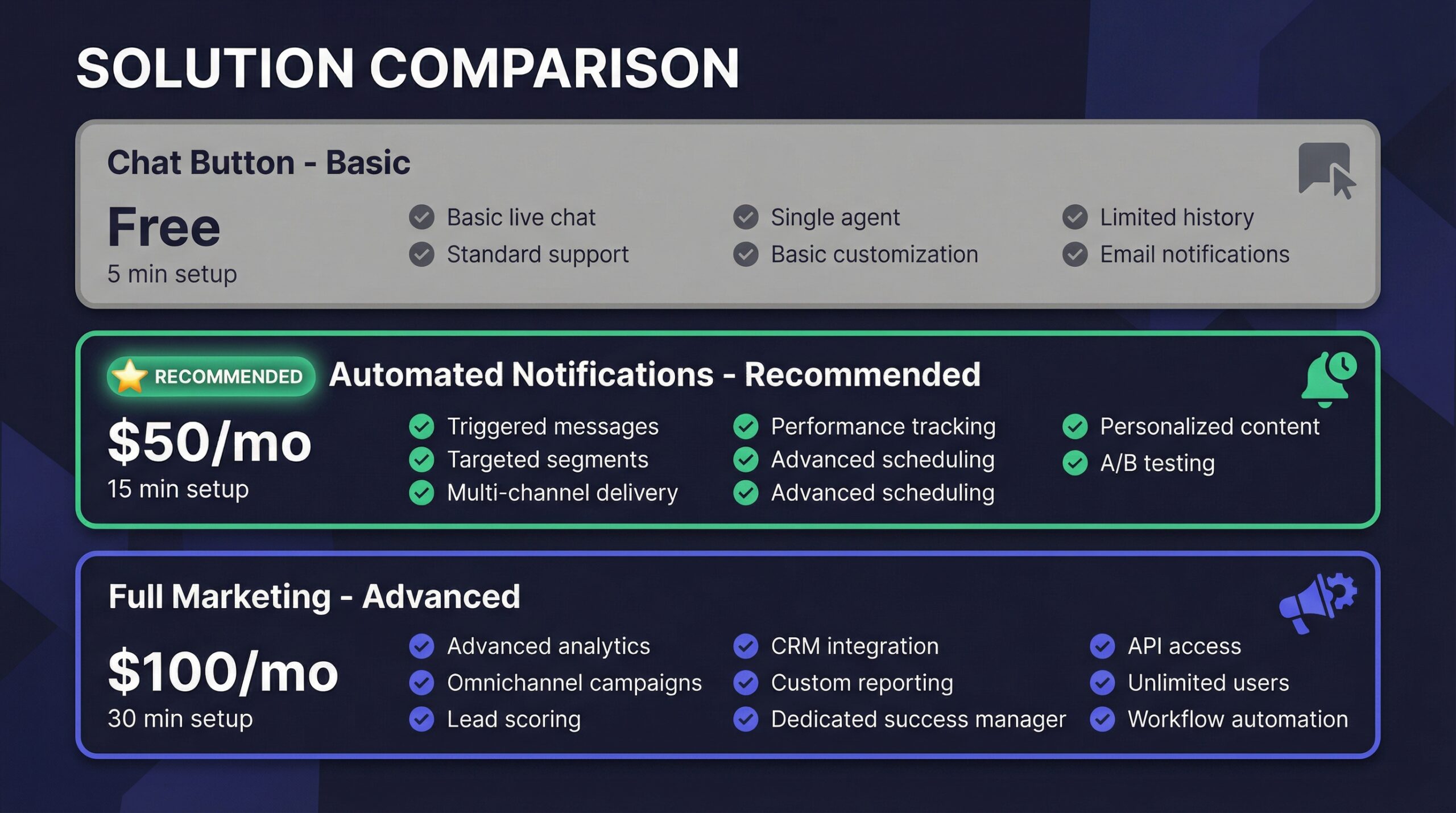
There are three distinct approaches, each suited to different store sizes and goals:
| Approach | Complexity | Cost | Best For |
|---|---|---|---|
| Chat button | Simple (5 min setup) | Free | Stores wanting basic WhatsApp contact |
| Automated notifications | Medium (15-30 min setup) | $5-50/month + API fees | Stores wanting order updates and restock alerts |
| Full marketing automation | Advanced (30-60 min setup) | $30-100/month + API fees | Stores wanting campaigns, segmentation, CRM |
Most Shopify stores should start with automated notifications and add marketing capabilities as they grow.
Method 1: Add a WhatsApp Chat Button (Simplest)
This is the fastest way to start using WhatsApp on your Shopify store. A chat button lets customers tap to open a WhatsApp conversation with your business.
What It Does
A floating WhatsApp button appears on your store (usually bottom-right). When a customer clicks it, WhatsApp opens with a pre-filled message to your business number. You then reply manually from your phone or WhatsApp Business App.
Setup Steps
- Install a WhatsApp chat button app from the Shopify App Store (SuperLemon, WhatsApp Chat by Starter, etc.)
- Enter your WhatsApp Business phone number
- Customize the button position and pre-filled message
- Enable the widget on your store
Total setup time: 5 minutes.
Limitations
- No automated messages (you reply manually to everything)
- No order notifications or restock alerts
- Does not scale beyond a few conversations per day
- No analytics or tracking
This approach works for small stores with low traffic that want to be reachable on WhatsApp without any ongoing cost.
Method 2: Send Automated WhatsApp Notifications (Recommended Start)
This is the approach most Shopify stores should start with. Automated notifications send WhatsApp messages triggered by store events without any manual effort.
What It Does
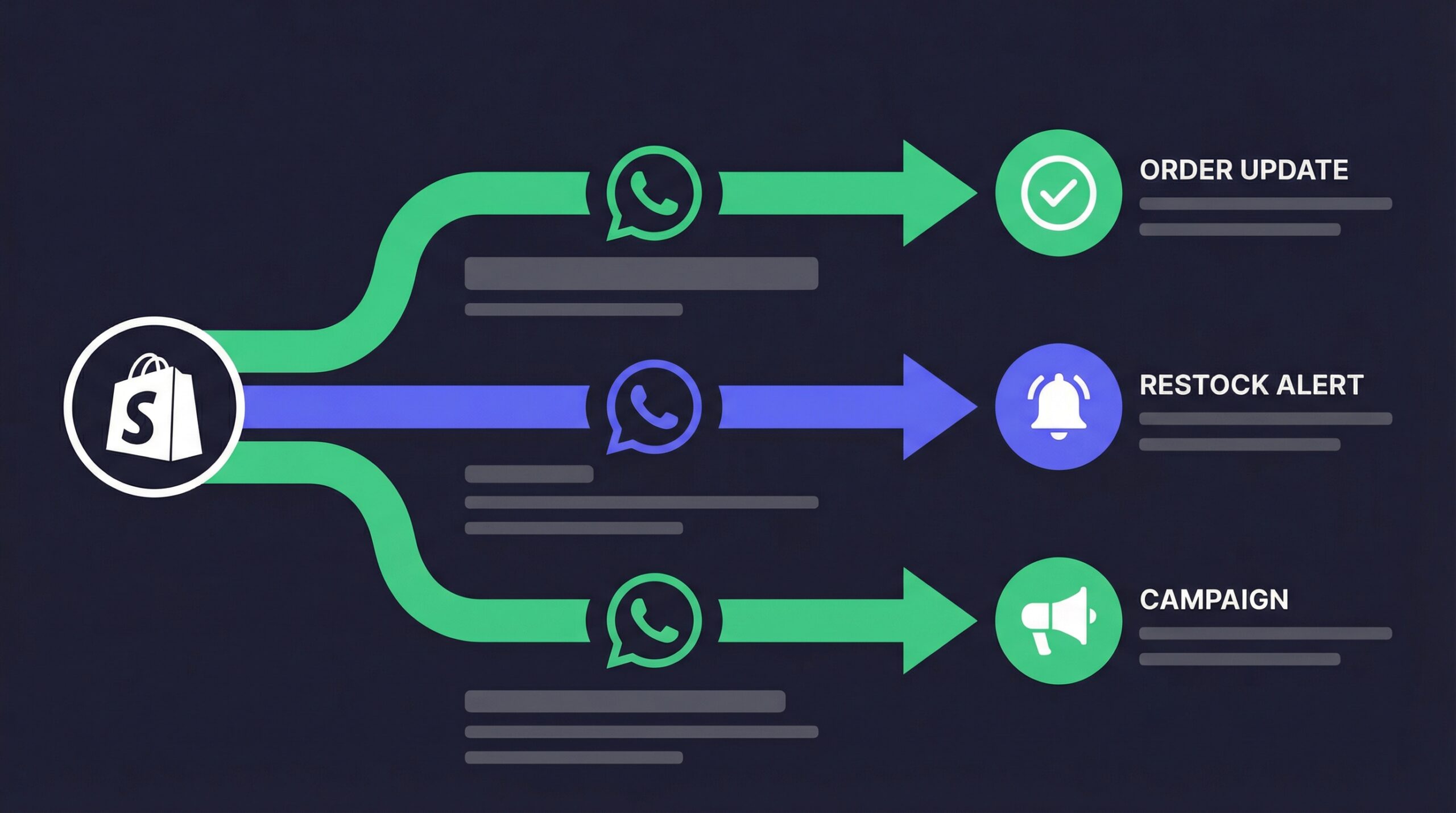
When specific events happen in your Shopify store, the app automatically sends a WhatsApp message to the customer:
- Order placed: Confirmation with order details
- Order shipped: Tracking link and delivery estimate
- Cart abandoned: Recovery reminder with link back to cart
- Product restocked: Alert to customers who signed up
- Delivery complete: Confirmation and review request
- COD verification: One-tap confirmation for Cash on Delivery orders
Setup Steps
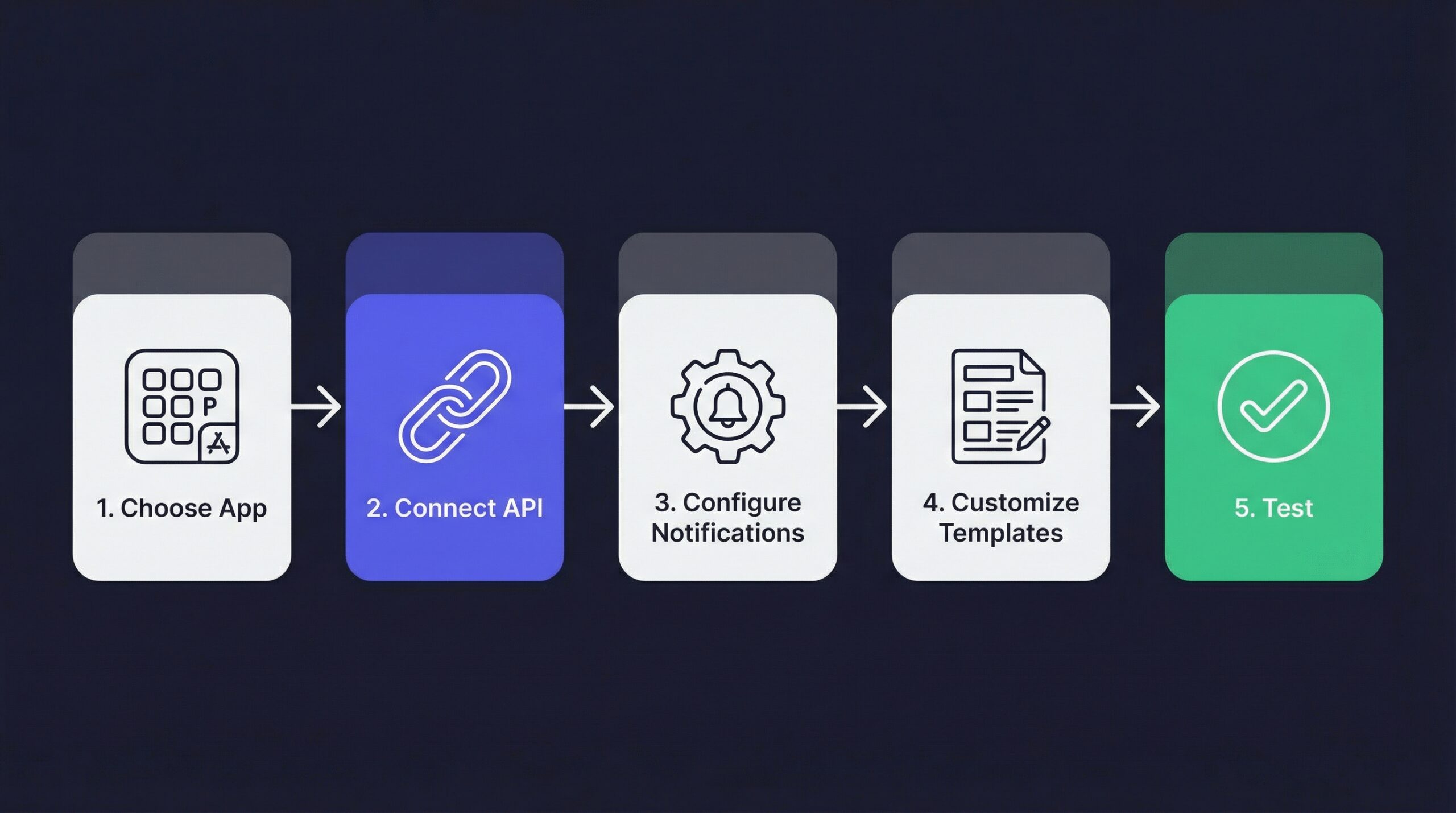
Step 1: Choose Your App
For automated notifications, you need an app that connects to the WhatsApp Business API. Top options:
| App | Price | Key Strength |
|---|---|---|
| StoreBeep | Free plan | Best for back-in-stock alerts with email + WhatsApp |
| WhatFlow | $9.99/mo | Best for order notification automation |
| Interakt | $15/mo | Best balance of features and price |
| Zoko | $39.99/mo | Best for full CRM + notifications |
Step 2: Connect WhatsApp Business API
After installing your chosen app:
- Open the app’s WhatsApp settings
- Click “Connect WhatsApp” (opens Facebook Business Manager)
- Log in or create your Facebook Business Manager account
- Create or select your WhatsApp Business Account
- Verify your business (if not already verified, takes 2-7 days)
- Connect your dedicated phone number
Most apps guide you through this process with a step-by-step wizard. The connection itself takes 10-15 minutes. Business verification is the only step that can cause delays.
Step 3: Configure Notification Types
Select which events should trigger WhatsApp messages. Start with:
- Order confirmation (utility message, cheapest)
- Shipping update (utility message, cheapest)
- Cart recovery (marketing message, higher cost but highest ROI)
You can always add more notification types later. For a complete breakdown of all seven notification types, see our WhatsApp notifications guide for Shopify.
Step 4: Customize Message Templates
Each notification type uses a message template. Most apps provide pre-built templates, but customizing improves results:
Order confirmation template example:
Hi {{customer_name}}! Your order #{{order_number}} has been confirmed.

Items: {{items}}
Total: {{total}}
Estimated delivery: {{delivery_date}}

Track your order: {{tracking_url}}
Templates need Meta approval before they can send. Pre-built templates from apps are usually pre-approved.
Step 5: Test Everything
Before going live:
- Place a test order on your store
- Verify you receive the WhatsApp order confirmation
- Mark the order as shipped and check for the shipping update
- Abandon a cart and wait for the recovery message
- Set a product to out-of-stock, sign up for the alert, then restock it
Testing takes 10 minutes and prevents embarrassing issues with real customers.
Cost Breakdown
Here is what automated WhatsApp notifications cost per month:
| Component | Cost |
|---|---|
| App subscription | $0-50/month |
| Utility messages (order + shipping, 500/mo) | $7.50 (US) |
| Marketing messages (cart recovery, 200/mo) | $10 (US) |
| Total for 700 messages/month | $17.50-67.50 |
Compare to email where the same 700 messages cost $0.70-2.10 in sending fees. WhatsApp costs more but converts significantly better for time-sensitive messages. Our WhatsApp vs email comparison breaks down the full cost-per-conversion math.
Method 3: Full WhatsApp Marketing Automation (Advanced)
For stores ready to use WhatsApp as a full marketing channel beyond just notifications.
What It Does Beyond Notifications
- Broadcast campaigns: Send promotions to segmented customer lists
- Drip sequences: Multi-message flows triggered by customer actions
- Product catalog: Share products directly in WhatsApp conversations
- CRM integration: Track customer interactions and purchase history
- AI chatbot: Automated responses for product questions and support
- Analytics: Campaign performance, revenue attribution, ROI tracking
When to Upgrade to Full Automation
You should consider full marketing automation when:
- Your WhatsApp subscriber list exceeds 500 contacts
- You want to run promotional campaigns beyond automated alerts
- You need customer segmentation and personalized messaging
- Your support team handles more than 20 WhatsApp conversations per day
- You sell in WhatsApp-heavy markets (India, Brazil, Europe)
Recommended Apps for Full Automation
| App | Monthly Cost | Key Differentiator |
|---|---|---|
| Zoko | $39.99+ | Best CRM and multi-agent support |
| DelightChat | $49+ | Best omnichannel helpdesk (WhatsApp + email + IG) |
| QuickReply.ai | $29+ | Best pre-built automation flows |
| Interakt | $15+ | Best value for growing stores |
For a detailed comparison of WhatsApp marketing strategies and what they cost, see our WhatsApp marketing guide for Shopify.
What You Need Before Sending WhatsApp Messages
Regardless of which method you choose, these prerequisites are required:
For Chat Button (Method 1)
- A WhatsApp Business App account (free)
- A phone number for your business
For Automated Notifications (Method 2) and Full Marketing (Method 3)
- A dedicated phone number not used on personal WhatsApp
- A Facebook Business Manager account (free to create)
- Business verification by Meta (2-7 business days)
- A Shopify app that connects to the WhatsApp Business API
The business verification step is the one that catches most merchants off guard. Start this process before you select an app so you are not waiting around after installation.
Opt-In Requirements
WhatsApp requires explicit opt-in from customers before you can send them automated messages. This means:
- Customers must actively choose to receive WhatsApp messages
- A checkbox or phone number field on your Notify Me button or checkout form
- Clear disclosure of what types of messages they will receive
- Easy opt-out in every message
You cannot import a list of phone numbers and start messaging. Every subscriber must actively consent.
How to Collect WhatsApp Subscribers on Your Shopify Store
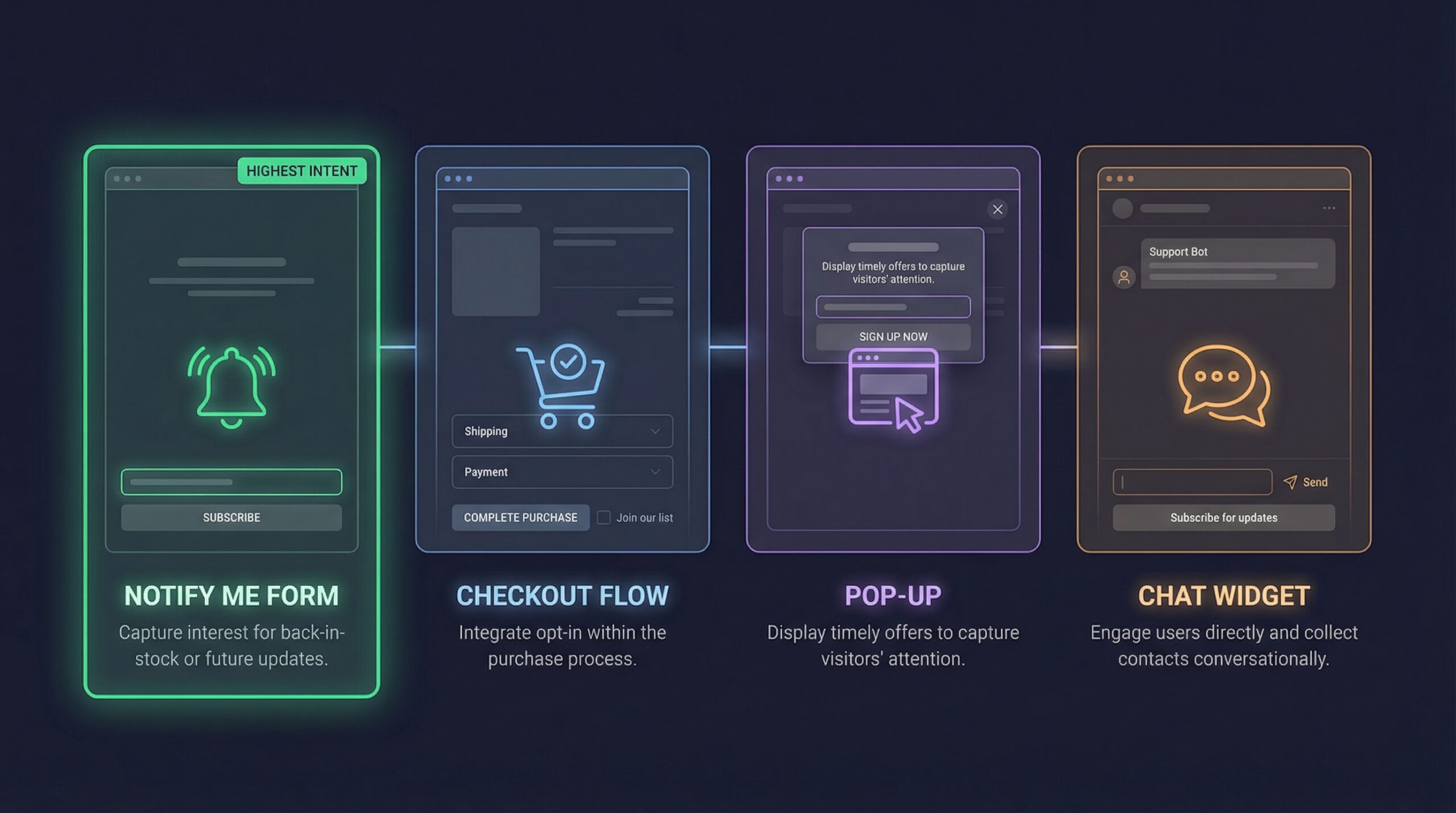
Building your WhatsApp subscriber list is as important as the messages you send. Here are the most effective collection points:
1. Notify Me / Back-in-Stock Form
When a product is out of stock, your Notify Me form can collect WhatsApp numbers alongside email addresses. This is the highest-intent subscriber you can get: they already want to buy.
Apps like StoreBeep collect both email and WhatsApp from a single form, so customers choose their preferred notification channel.
2. Checkout Flow
Add a WhatsApp opt-in checkbox during checkout. Customers who just purchased are likely to want order updates via WhatsApp.
3. Pop-Up or Banner
A simple “Get exclusive deals on WhatsApp” pop-up with a phone number field. Best for stores that want to build a WhatsApp marketing list for campaigns.
4. Website Chat Widget
When customers initiate a WhatsApp conversation through your chat widget, they automatically become a contact you can message (within WhatsApp’s rules about customer-initiated conversations).
WhatsApp Message Types and What They Cost
Understanding message categories helps you budget correctly:
| Category | What It Includes | Cost (US) | Cost (India) |
|---|---|---|---|
| Utility | Order confirmations, shipping updates, delivery alerts | $0.015 | $0.005 |
| Marketing | Cart recovery, restock alerts, promotions, campaigns | $0.05 | $0.01 |
| Authentication | COD verification, account verification | $0.014 | $0.004 |
| Service | Customer-initiated conversations (within 24h) | Free | Free |
Key insight: utility messages are 3-5x cheaper than marketing messages. Start with order confirmations and shipping updates (utility) to demonstrate value, then add cart recovery and restock alerts (marketing) when you see the ROI.
WhatsApp commerce delivers 57.4x ROI for ecommerce brands (Chatarmin, 2025). Even at the higher marketing message pricing, the channel generates strong returns for most Shopify stores.
Frequently Asked Questions
Do I need a developer to send WhatsApp from Shopify?
No. Shopify apps handle the entire integration with the WhatsApp Business API. You install the app, connect your WhatsApp account through a guided wizard, and configure your message templates. No code required.
How long does it take to start sending WhatsApp messages?
If your Facebook Business Manager is already verified, you can start sending within 30 minutes. If you need business verification first, add 2-7 business days.
Can I use my personal WhatsApp number?
For a chat button (Method 1), yes. For automated notifications (Method 2 and 3), you need a dedicated number that is not registered on personal WhatsApp. The WhatsApp Business API requires an exclusive number.
How many WhatsApp messages can I send per day?
New API accounts start at 250 business-initiated messages per 24 hours. This increases to 1,000, 10,000, and eventually unlimited as you build sender reputation. Customer-initiated conversations do not count toward this limit.
What happens if a customer does not have WhatsApp?
The message simply does not deliver. This is why most stores use WhatsApp alongside email. Automated restock emails reach every customer regardless of which apps they use.
Is sending WhatsApp messages from Shopify legal?
Yes, as long as you have explicit opt-in consent from each recipient and comply with WhatsApp’s Business Policy and applicable privacy regulations (GDPR, CCPA, etc.).
Which notification should I automate first?
Start with order confirmations (cheapest, most expected) and cart recovery (highest ROI). These two alone justify the WhatsApp investment for most stores.
Start Sending WhatsApp Messages Today
Sending WhatsApp messages from your Shopify store is simpler than most merchants expect. The entire setup takes 15-30 minutes, and the results speak for themselves: 98% open rates, 40-60% click-through rates, and conversion rates that email cannot match (yCloud, 2026).
Your starting point depends on your store’s stage:
- Just starting: Add a chat button for free in 5 minutes
- Ready to automate: Set up StoreBeep for back-in-stock alerts with email + WhatsApp collection
- Ready to scale: Add full marketing automation with Zoko or DelightChat
54% of users prefer receiving marketing messages via WhatsApp over email or SMS (AiSensy, 2025). Give your customers the channel they prefer and start recovering the revenue you lose to missed notifications.