A customer lands on your best-selling product page, ready to buy. The product is out of stock. They leave. You never hear from them again.
This happens hundreds of times a day on Shopify stores that don’t have a back-in-stock button. Instead of capturing that customer’s email and bringing them back when you restock, you hand them straight to a competitor.
Here’s the good news: adding a notify me button on Shopify takes about five minutes, requires zero code, and starts recovering revenue from day one. Back-in-stock emails convert at 22.45% (MarketingSherpa case study, 2024), which is more than 10x the conversion rate of a standard promotional email. That’s not a typo. Customers who sign up for restock alerts genuinely want your product and will buy when it’s available again.
This guide walks you through the entire process: choosing the right app, installing it, customizing the button, and turning out-of-stock pages into revenue recovery machines.
What Is a Notify Me Button on Shopify?
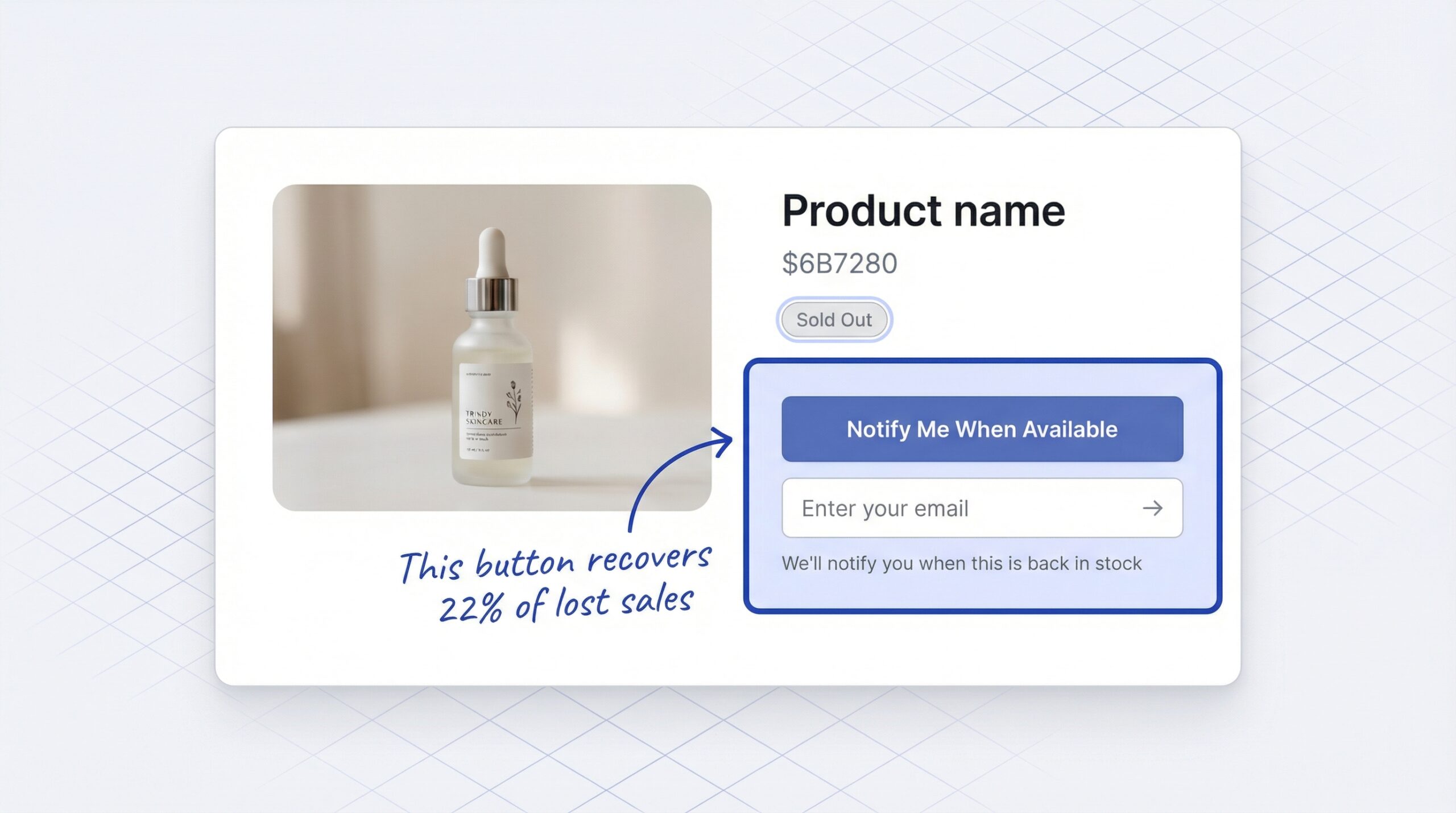
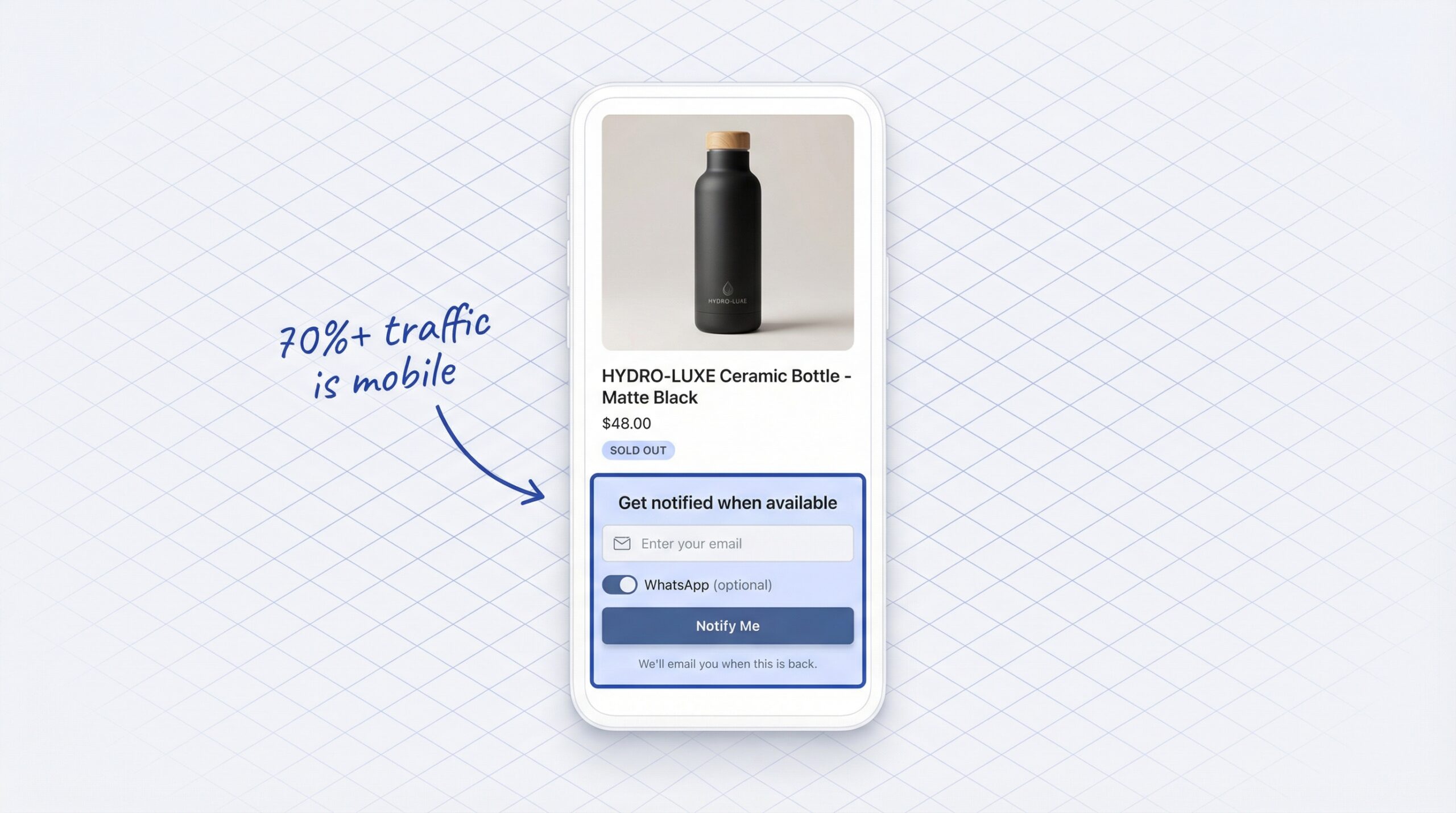
A notify me button on Shopify is a customizable element that appears on out-of-stock product pages, allowing customers to enter their email address and receive an automatic alert when the product is restocked. It replaces the dead-end “Sold Out” label with a way to capture demand and recover sales.
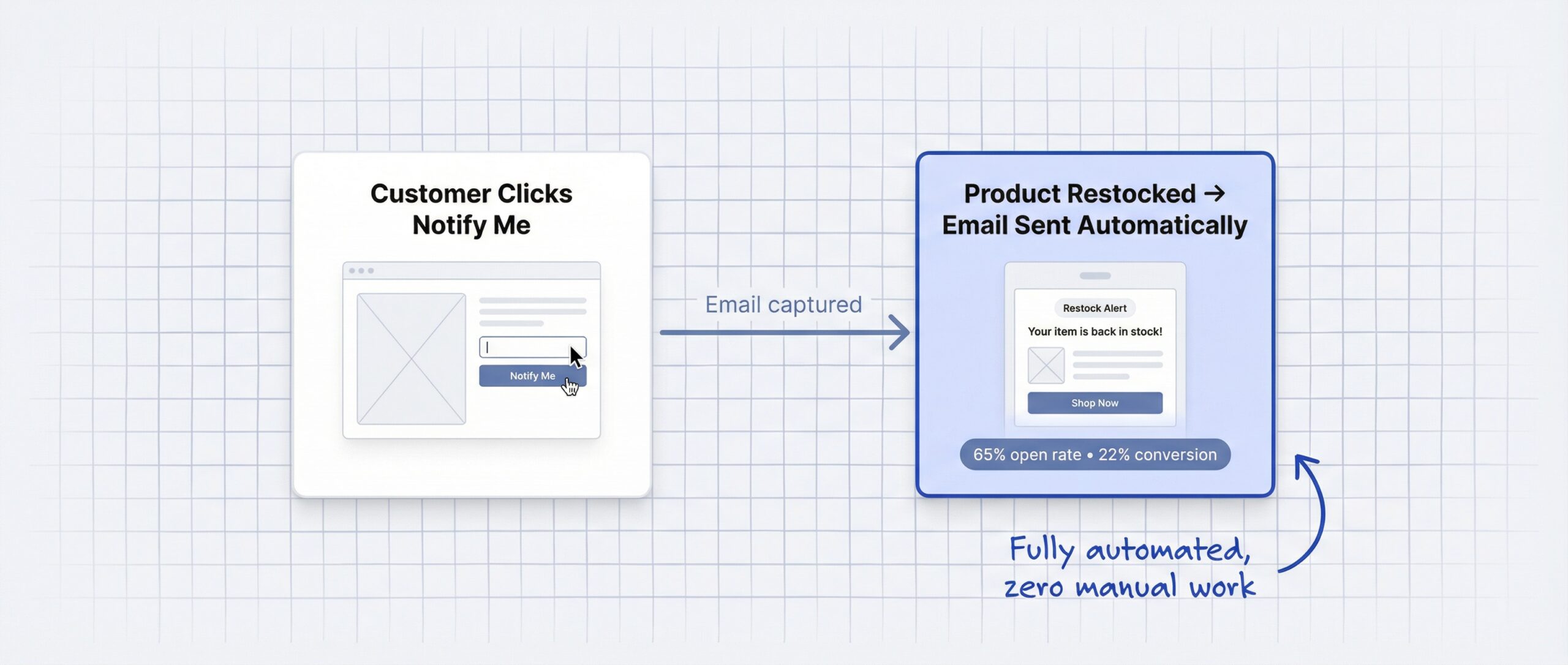
The process works in two steps. First, the customer clicks “Notify Me” and submits their email. Second, when you update your Shopify inventory and the product is back in stock, the app sends an automatic restock notification to everyone who signed up. No manual follow-ups needed.
Shopify does not include a native notify me button. You need a third-party app to add this functionality. The good news is that modern apps like StoreBeep install in a few clicks, work with every Shopify theme, and start working immediately on any product with zero inventory.
| Feature | What It Does |
|---|---|
| Email capture | Collects customer emails when products are sold out |
| Automatic alerts | Sends restock notifications without manual work |
| Demand tracking | Shows which products have the highest waitlist signups |
| Purchase tracking | Measures how many alerts convert into actual sales |
| Multi-channel | Some apps collect WhatsApp numbers alongside email |
Why Your Shopify Store Needs a Notify Me Button
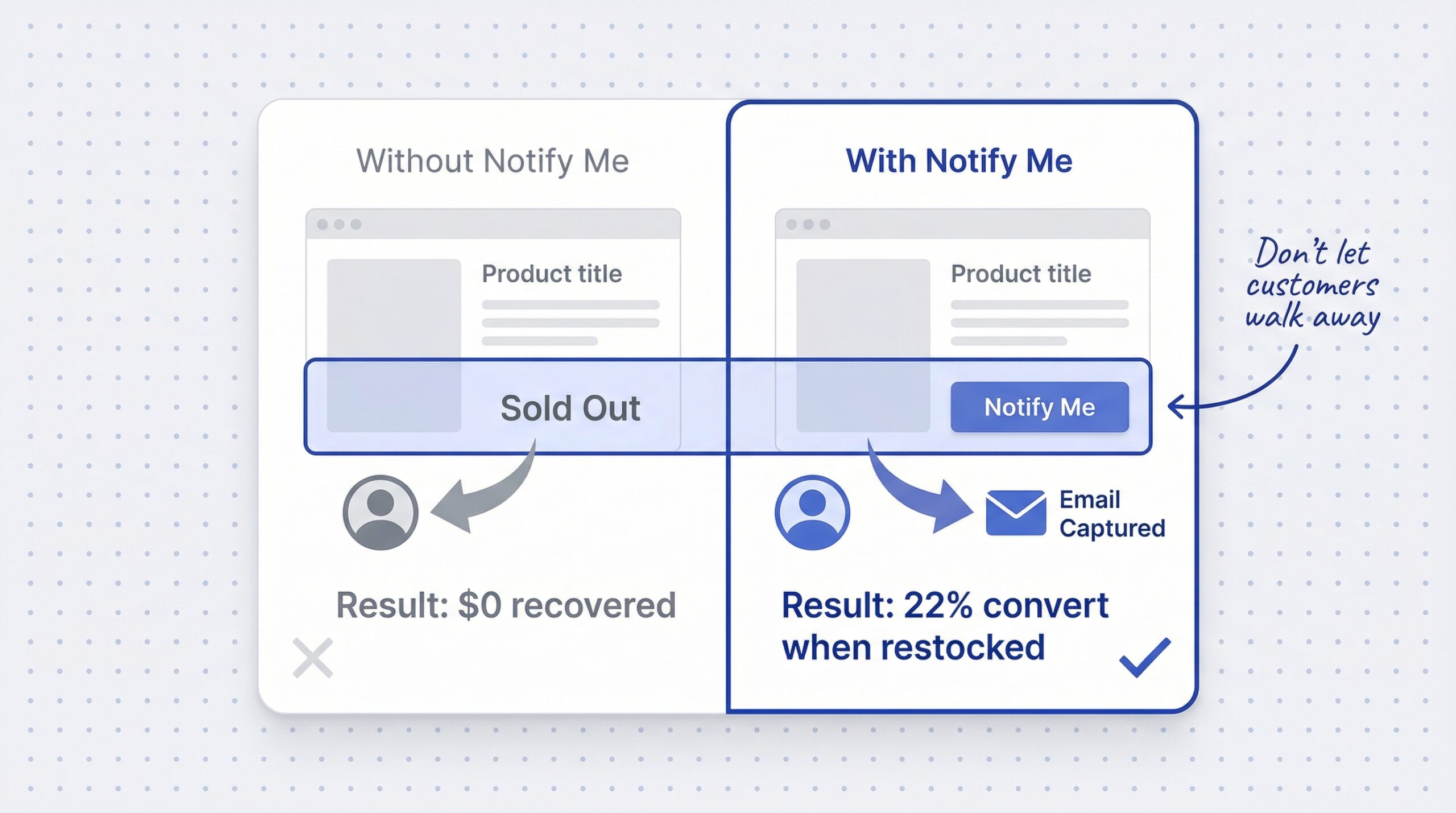
Without a notify me button, an out-of-stock product page is a dead end. The customer sees “Sold Out,” and you lose them forever.
The data confirms how fast customers disappear. 91% of shoppers won’t wait for a restock (Amra and Elma, 2024). They search for alternatives immediately. Even worse, 43% will buy the same product from a competitor (Amra and Elma, 2024) during that single visit.
The financial impact is staggering. Stockouts cause 20% of all cart abandonments (Opensend research, 2025), and 63% of customers who leave during a stockout never return (Opensend research, 2025). Globally, retailers lose $1.2 trillion every year to out-of-stock products (Opensend research, 2025).
A restock signup button changes this outcome entirely. Instead of losing customers, you capture their interest. When you restock, they come back and buy. Back-in-stock emails hit a 65.32% open rate (Omnisend benchmarks, 2024), which dwarfs the 21% average for regular marketing emails.
Understanding the full financial impact of stockouts on your Shopify store makes the case even stronger: the hidden costs go far beyond the obvious lost sale.
Here’s what a back-in-stock button gives you:
- Revenue recovery: Bring customers back automatically when you restock
- Demand intelligence: See exactly which products customers want most
- Email list growth: Build your marketing list from high-intent shoppers
- Competitive defense: Keep customers in your orbit instead of losing them to rivals
- Inventory insights: Prioritize restocking based on real waitlist data
Best Notify Me Apps for Shopify (2026 Comparison)
Several Shopify apps add a back in stock button, but they differ significantly in pricing, features, and ease of setup. Every back in stock button Shopify app offers works slightly differently. Here’s how the top options compare.
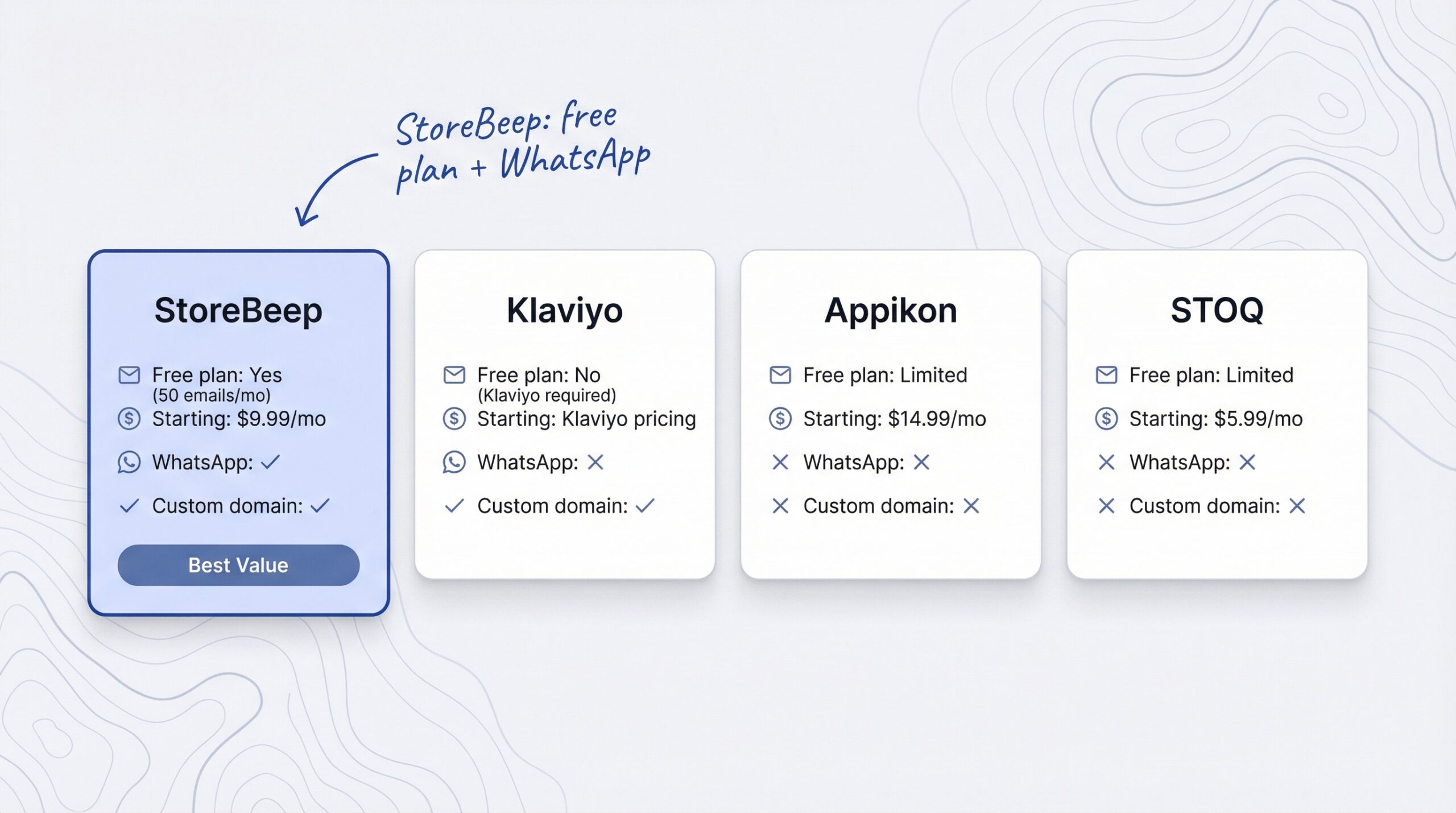
| Feature | StoreBeep | Klaviyo Back in Stock | Appikon | STOQ |
|---|---|---|---|---|
| Free plan | Yes (50 emails/mo) | No (Klaviyo required) | Limited | Limited |
| Starting paid price | $9.99/month | Included in Klaviyo plan | $14.99/month | $5.99/month |
| Custom sender domain | Yes (Pro) | Yes (platform-level) | No | No |
| WhatsApp collection | Yes | No | No | No |
| Purchase tracking | Yes | Yes | Basic | No |
| Webhook integrations | Yes | Native Klaviyo | No | No |
| Multi-language | Yes | Yes | Yes | Limited |
| Setup time | ~3 minutes | 15-30 minutes | ~5 minutes | ~5 minutes |
StoreBeep stands out for stores that want a dedicated, purpose-built restock alert solution without committing to an entire email marketing platform. It includes WhatsApp number collection, custom sender domains on the Pro plan, and purchase tracking that shows your exact ROI from restock alerts. The free plan is generous enough for stores just getting started.
Klaviyo Back in Stock makes sense if you already run Klaviyo for email marketing, since the back-in-stock flows integrate natively. But if you’re using Mailchimp, Shopify Email, or another platform, Klaviyo locks you into their ecosystem just for restock alert functionality.
For most Shopify stores, a dedicated restock notification app is simpler to set up and more flexible than building notify me flows inside a full email marketing platform.
How to Add a Notify Me Button on Shopify (Step-by-Step)
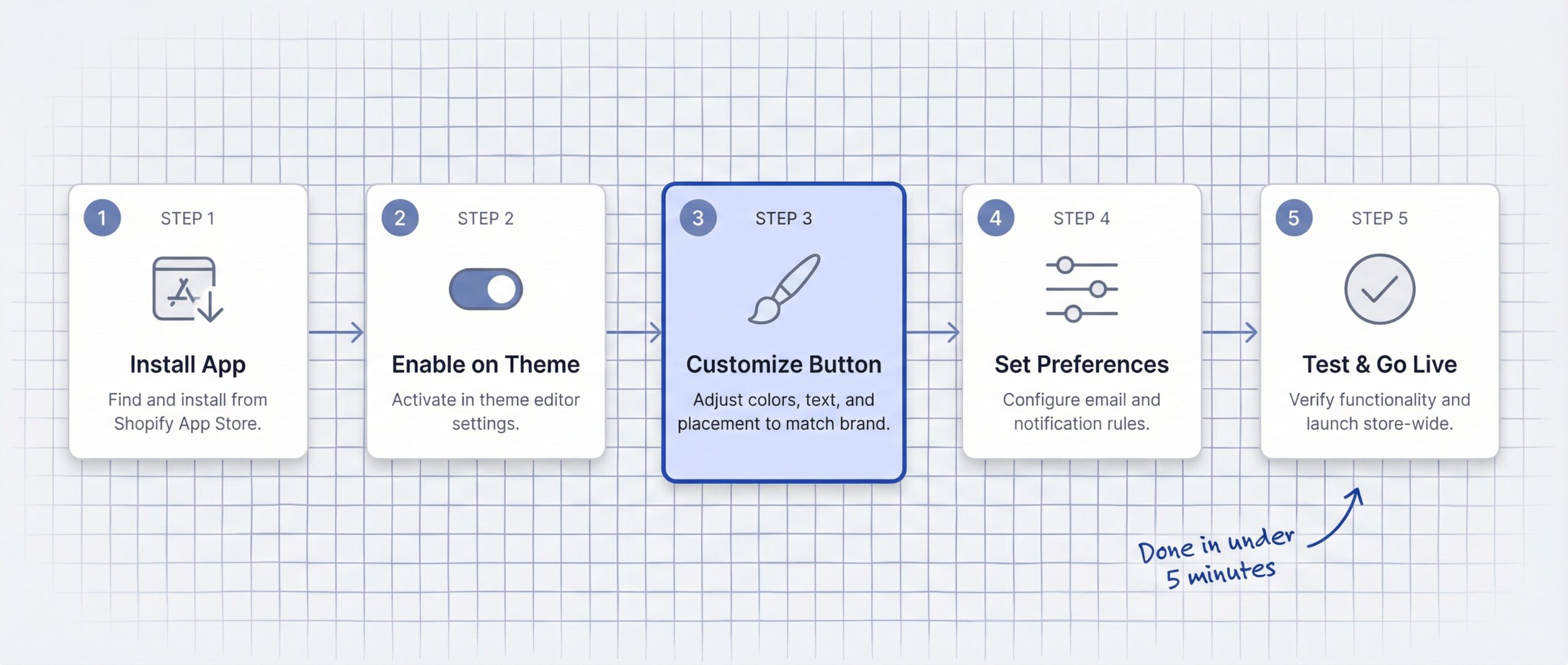
Adding a notify me button Shopify merchants can use requires no coding knowledge and takes about five minutes. Choosing the right notify me Shopify app depends on your budget and feature needs. Here’s the complete process using StoreBeep back in stock alerts.
Step 1: Install the app from the Shopify App Store
Go to the Shopify App Store and search for “StoreBeep” or “back in stock alerts.” Click Add app, then Install on the confirmation screen. Shopify handles all permissions automatically.
Step 2: Enable the restock button on your theme
After installation, StoreBeep prompts you to enable the app embed on your theme. For Shopify Online Store 2.0 themes (which includes all modern themes), this is a single toggle. Click Enable, and the button is live.
Step 3: Customize your button text and appearance
Open StoreBeep’s settings to change the button text (default is “Notify Me”), adjust colors to match your store’s branding, and choose which form fields to display. You can collect just email, or add optional WhatsApp and newsletter signup fields.
Step 4: Set your notification preferences
Configure when alerts go out. StoreBeep lets you set a minimum inventory threshold that triggers automatic notifications. For example, you can tell it to send alerts only when stock reaches 5+ units, so you don’t notify customers for a single returned item.
Step 5: Test on an out-of-stock product
Set any product’s inventory to zero in Shopify admin. Visit the product page on your storefront. You should see the restock alert button appear where the “Add to Cart” button normally sits. Enter a test email. Then restock the product and confirm the alert email arrives.
That’s it. Five steps, no code, under five minutes. Every out-of-stock product on your store now captures customer emails automatically.
How to Customize Your Back-in-Stock Button for Higher Conversions
The default settings work, but a few tweaks can significantly increase how many customers sign up. Shopify merchants searching for “notify me when available” options will find your button automatically on out-of-stock pages.
Button text that converts
The words on your button matter. “Notify Me” works, but you can test alternatives:
| Button Text | Best For | Why It Works |
|---|---|---|
| “Notify Me” | General stores | Simple, universally understood |
| “Email Me When Available” | Clarity-focused | Tells customers exactly what happens |
| “Get Restock Alert” | Action-oriented | Creates urgency around restocking |
| “Join the Waitlist” | Premium/limited products | Implies exclusivity and demand |
| “Don’t Miss Out – Notify Me” | High-demand products | Adds urgency without being pushy |
Form field strategy
Keep friction low. A single email field converts best. If you want to collect WhatsApp numbers, make it optional. StoreBeep lets you add a WhatsApp field and a newsletter opt-in checkbox without cluttering the signup form.
WhatsApp is worth considering. WhatsApp messages achieve a 98% open rate compared to 21% for standard email (Wapikit research, 2025). Offering both channels maximizes your chances of reaching the customer when you restock.
Custom sender domain
On StoreBeep’s Pro plan ($9.99/month), you can send restock alerts from your own domain instead of a generic third-party address. Emails from [email protected] get higher open rates than emails from [email protected] because customers recognize the sender.
Mobile optimization
With 70%+ of ecommerce traffic coming from mobile devices (VT Digital, 2025), your restock alert form must work flawlessly on small screens. StoreBeep’s forms are fully responsive out of the box. Make sure your button text is short enough to fit on a mobile screen without wrapping.
Notify Me Button vs. Preorder vs. Hiding Out-of-Stock Products
When a product goes out of stock, you have three main options. Each suits a different situation.
| Approach | When to Use | Pros | Cons |
|---|---|---|---|
| Notify me button | Restock planned but date uncertain | Captures demand, recovers revenue, zero risk | Customer must wait, no guaranteed sale |
| Preorder button | Confirmed restock date available | Guaranteed sale, immediate revenue | Requires commitment, fulfillment pressure |
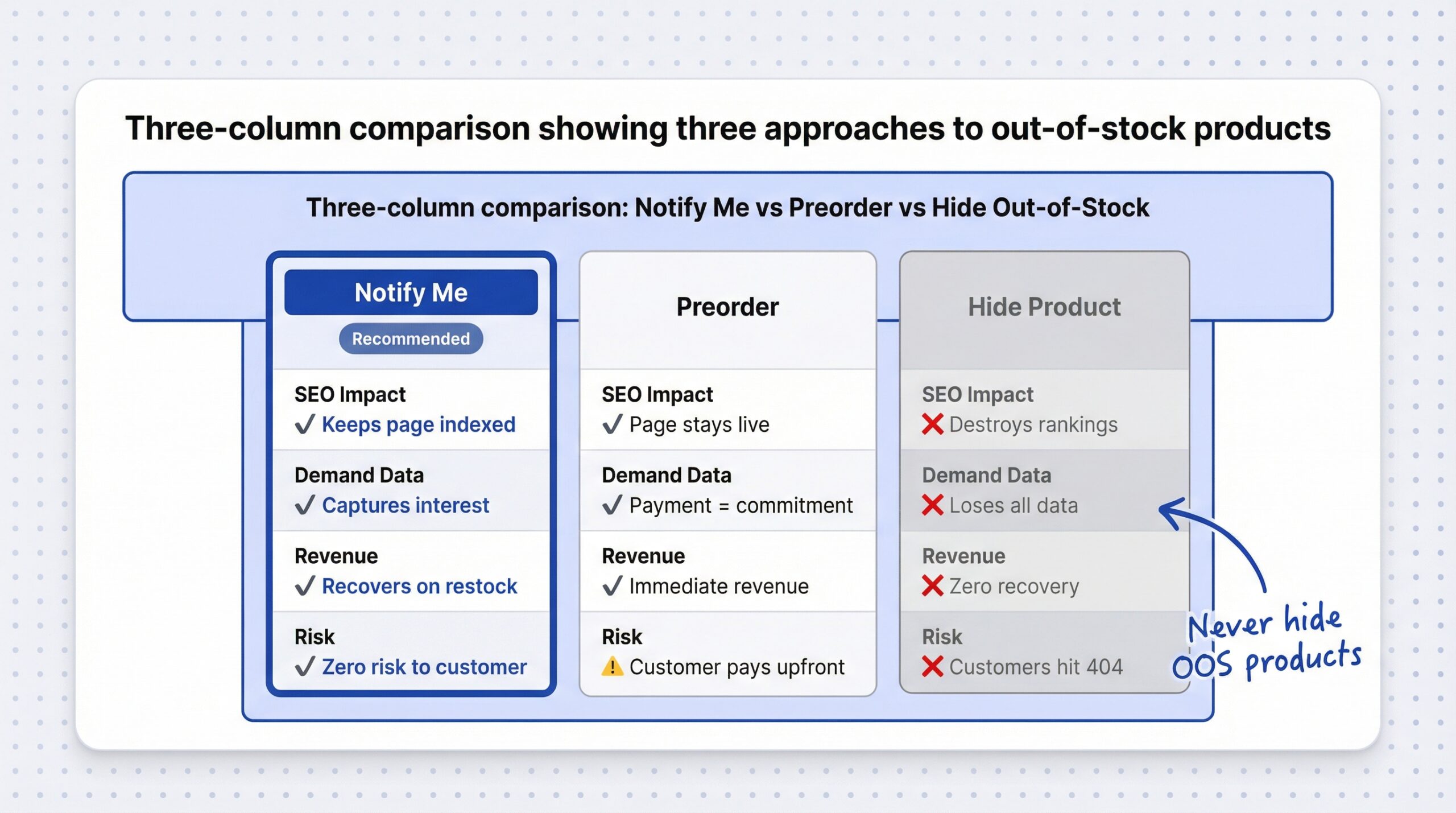
| Hide out-of-stock | Never (with rare exceptions) | Cleaner catalog visually | Destroys SEO rankings, loses demand data, customers can’t find the page |
The worst option is hiding out-of-stock products. When you remove a product page from your store, you lose all the SEO value that page built up. Google stops indexing it. Customers who bookmarked it hit a 404 error. And you get zero data about how many people still want that product.
Restock alert signups are almost always the right choice. It keeps the product page live for SEO, captures customer intent, and creates a direct line to bring those customers back.
The only scenario where preorder wins is when you have a confirmed shipment date and want to collect payment upfront. Even then, some merchants use both: a preorder button for customers ready to pay now, and a restock alert signup for customers who prefer to wait and pay later.
For a deeper look at how Shopify restock notifications recover revenue, check out our detailed comparison of notification systems and how they work under the hood.
What Makes a High-Converting Restock Button?
Not all restock buttons perform equally. Here’s what separates buttons that collect a handful of emails from buttons that drive real revenue.
1. Prominent placement. The button should appear exactly where the “Add to Cart” button normally sits. Customers expect to take action in that spot. If the button is buried below the fold, signups drop dramatically.
2. Single-field capture. Ask for the email address and nothing else in the primary field. Every extra required field reduces conversion. Make WhatsApp and newsletter optional.
3. Clear value statement. Tell customers what they’ll get. “We’ll email you the moment this is back in stock” sets expectations. A button with no context gets fewer signups than one with a short explanation.
4. Fast alert delivery. When you restock, alerts should fire automatically within minutes. StoreBeep monitors your Shopify inventory in real time and sends notifications as soon as stock is updated. Delays kill conversion because the customer may have already bought elsewhere.
5. Branded email delivery. Restock alerts sent from your own domain (like [email protected]) get opened more than alerts from generic third-party addresses. Customers recognize your brand and trust the email. StoreBeep’s custom sender domain feature handles this on the Pro plan.
6. Mobile-first design. Since 70%+ of Shopify traffic is mobile, your restock signup form needs to load fast, display cleanly, and be easy to tap. Avoid multi-step popups on mobile. A simple inline form converts best.
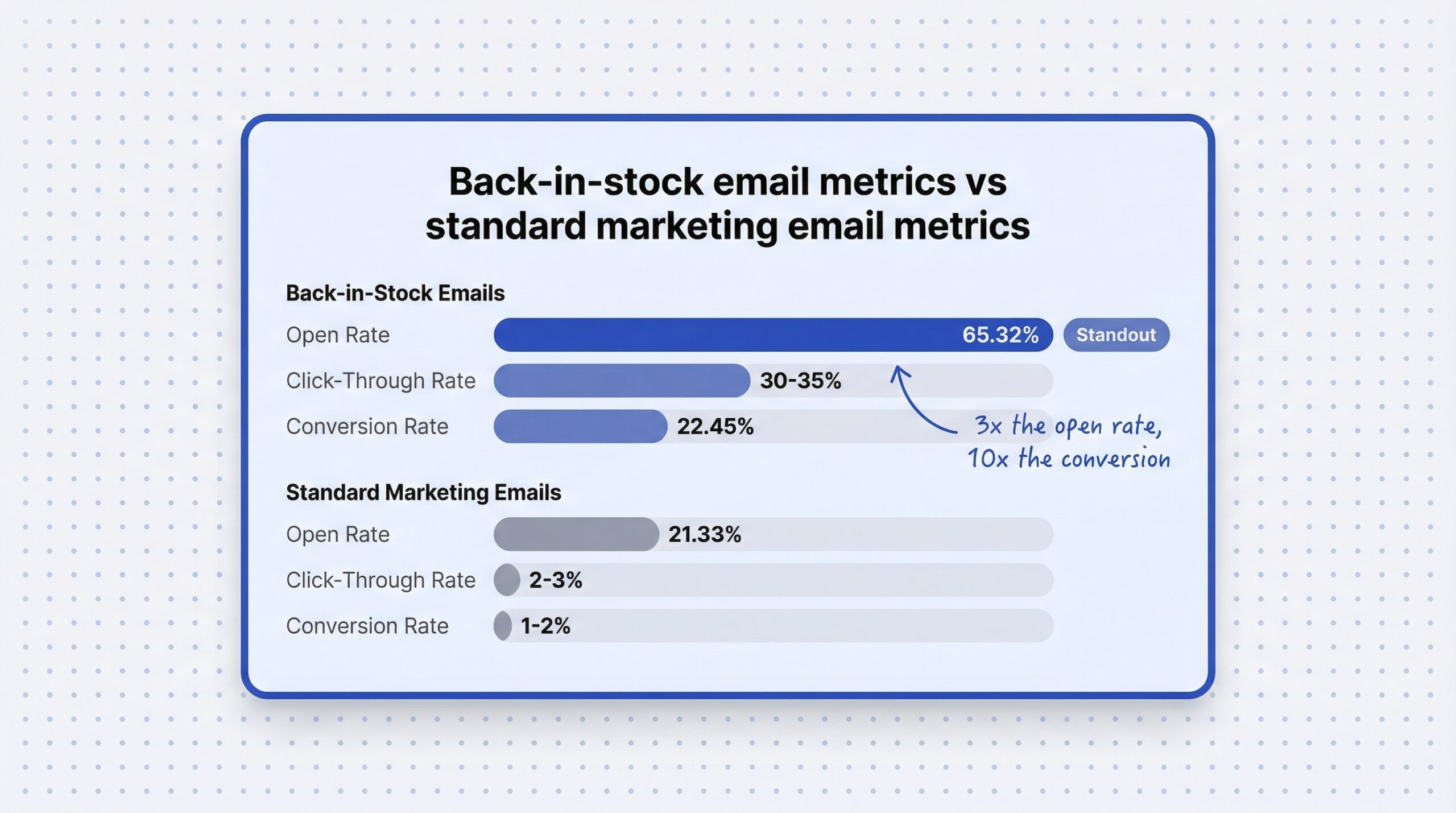
Back-in-stock emails already outperform most marketing channels. The average open rate is 65.32% (Omnisend benchmarks, 2024) and the conversion rate reaches 22.45% (MarketingSherpa case study, 2024). Optimizing your restock button and form to capture more signups amplifies these numbers across your entire catalog.
| Metric | Back-in-Stock Emails | Standard Marketing Emails |
|---|---|---|
| Open rate | 65.32% | 21.33% |
| Conversion rate | 22.45% | 1-2% |
| Click-through rate | 30-35% | 2-3% |
| Customer intent | Very high (they asked for this) | Mixed (unsolicited) |
StoreBeep Pricing: What Does a Restock Alert App Cost?
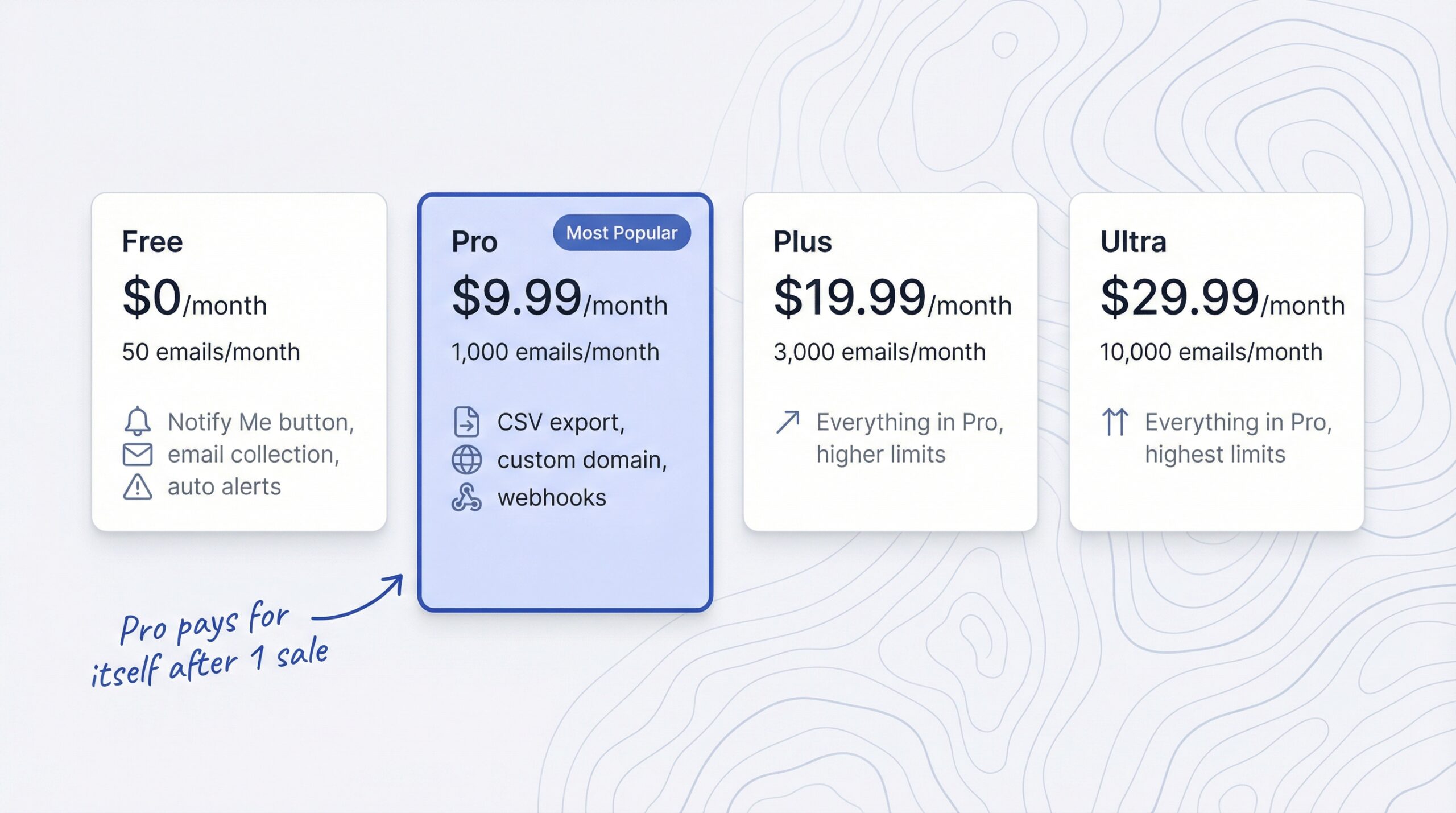
Adding a restock alert button doesn’t have to cost anything to start. Here’s StoreBeep’s current pricing:
| Plan | Monthly Price | Email Limit | Key Features |
|---|---|---|---|
| Free | $0 | 50 emails/month | Notify Me button, email collection, automatic alerts |
| Pro | $9.99 | 1,000 emails/month | CSV export, custom sender domain, webhooks |
| Plus | $19.99 | 3,000 emails/month | Everything in Pro, higher limits |
| Ultra | $29.99 | 10,000 emails/month | Everything in Pro, highest limits |
All paid plans include a 14-day free trial. The free plan is fully functional for smaller stores or merchants who want to test the concept before investing. The Pro plan at $9.99/month unlocks the features that matter most for revenue recovery: custom sender domains for better email deliverability and webhook integrations for connecting with your existing marketing stack.
For most growing Shopify stores, the Pro plan pays for itself after a single recovered sale. If your average order value is $40 and you recover just one sale per month through restock alerts, you’ve already covered the cost of the app.
Explore more guides on recovering revenue from stockouts on the StoreBeep blog.
Frequently Asked Questions
Does Shopify have a built-in notify me button?
No, Shopify does not include a native notify me button. You need a third-party app like StoreBeep restock alerts to add this functionality to your product pages.
How do I add a notify me button on Shopify without code?
Install a back-in-stock app from the Shopify App Store, enable it on your theme with one click, and customize the appearance. The Shopify notify me when available setup takes under five minutes with apps like StoreBeep.
What is the best free notify me app for Shopify?
StoreBeep offers a free plan that includes a “Notify Me” button, email collection, and automatic restock alerts for up to 50 emails per month. No credit card required.
What conversion rate do back-in-stock emails achieve?
Back-in-stock emails average a 22.45% conversion rate (MarketingSherpa case study, 2024), far higher than standard marketing emails which typically convert at 1-2%.
Can I collect WhatsApp numbers with a Shopify back-in-stock button?
Yes, apps like StoreBeep let you collect WhatsApp numbers alongside email addresses in a single signup form. WhatsApp messages have a 98% open rate compared to 21% for email.
Should I hide out-of-stock products or add a back-in-stock button?
Add a back-in-stock button. Hiding out-of-stock products destroys your SEO rankings and eliminates demand data. A restock alert button keeps the page indexed, captures customer interest, and brings shoppers back when you restock.
How fast do customers get notified after I restock?
With StoreBeep, restock alerts fire automatically as soon as your Shopify inventory updates. Customers receive email notifications within minutes of restocking, with no manual work required.
Do back-in-stock buttons work on mobile Shopify themes?
Yes, modern back-in-stock apps are fully responsive. StoreBeep works on all Shopify themes including mobile layouts, where 70%+ of ecommerce traffic originates.
What is the difference between a restock alert button and a preorder button?
A restock alert button collects customer interest for products you plan to restock but haven’t yet. A preorder button lets customers pay now for a product with a confirmed future delivery date. Use notify me when your restock timeline is uncertain.
Start Capturing Demand Today
Every day without a restock alert button is a day you’re losing customers to competitors. The math is simple: 91% of shoppers won’t wait for a restock, but the ones who sign up for alerts convert at 22.45% when you bring them back.
Here’s what to do right now:
- Install StoreBeep from the Shopify App Store (free plan available)
- Enable the button on your theme in one click
- Customize the text and colors to match your brand
- Check your demand dashboard after a week to see which products customers want most
The setup takes five minutes. The revenue recovery starts immediately. And you’ll never lose another customer to a “Sold Out” label without at least capturing their email first.
Your out-of-stock pages don’t have to be dead ends. Turn them into your next sale.