You’ve got a product that just sold out. Your first instinct is to hide it so customers don’t land on a page they can’t buy from. Makes sense, right?
Not so fast. When you hide out of stock products on Shopify, you’re doing more damage than you realize. That product page has been building SEO authority, earning backlinks, and ranking in Google. The moment you flip it to Draft, all of that disappears.
Globally, out-of-stock products drain $1.2 trillion from retailers every year (IHL Group, 2024). But the cost of hiding those products from your store? That’s a separate, self-inflicted wound that many Shopify merchants don’t realize they’re causing. And if you’re actively choosing to hide sold out products on Shopify, the damage compounds even further.
This article breaks down exactly why hiding out of stock products is almost always the wrong move, what to do instead, and the few specific situations where hiding actually makes sense.
What does it mean to hide out of stock products on Shopify?
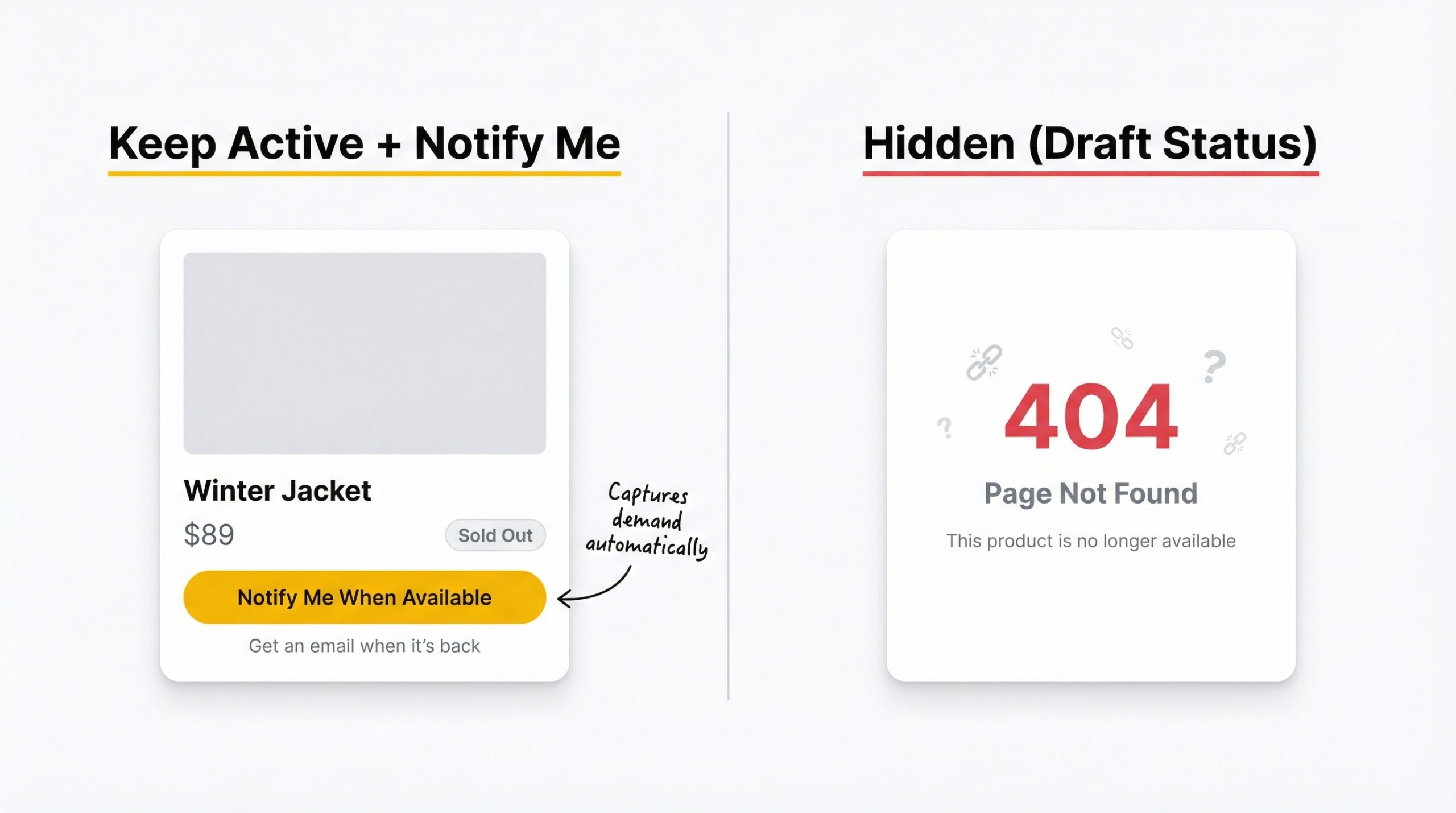
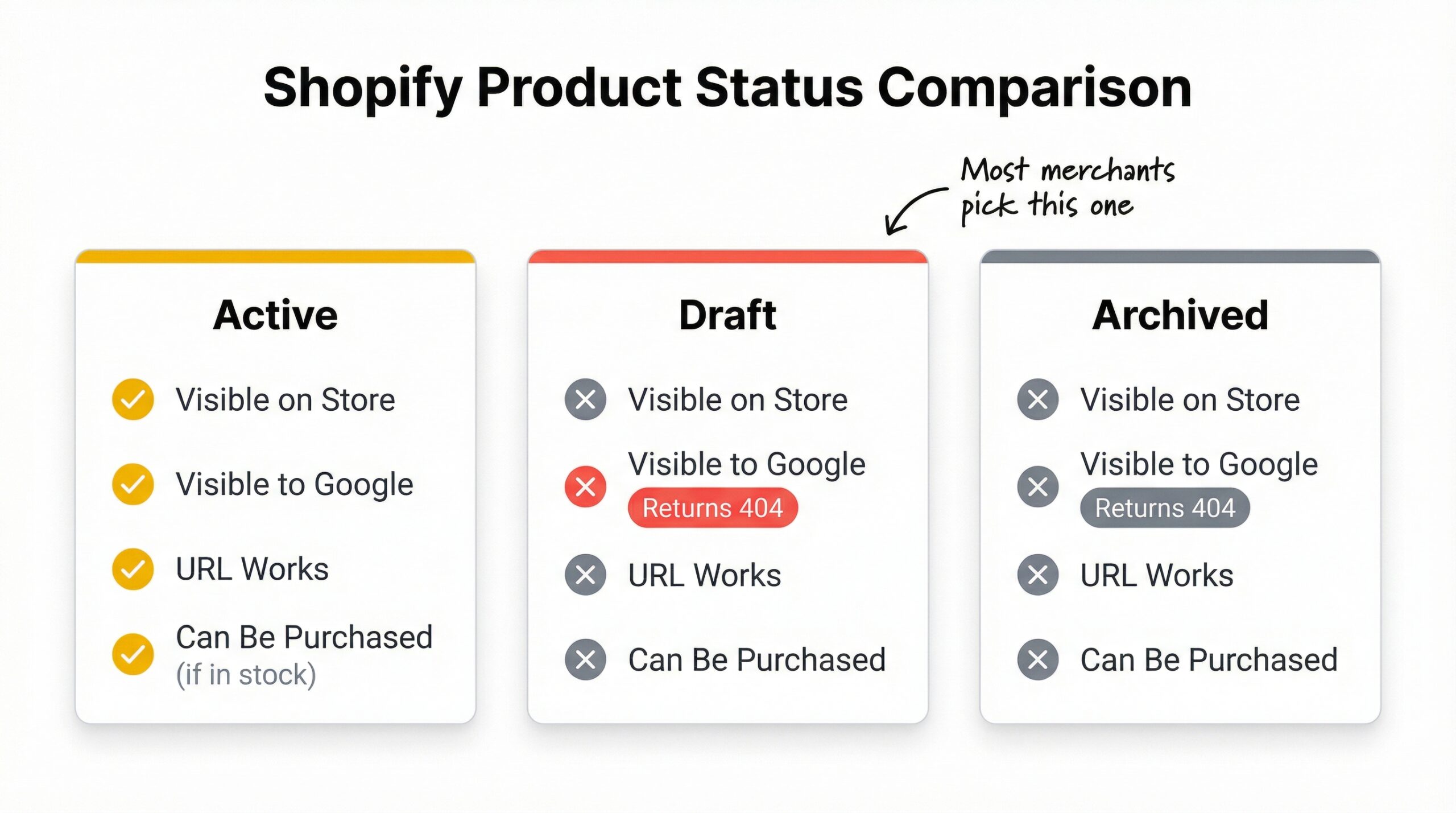
When merchants hide out of stock products on Shopify, they’re changing the product status from Active to Draft. When a product is in Draft mode, it disappears from your storefront, your collections, and your online sales channels. The URL that page lived at now returns a 404 error to anyone who visits it, including Google’s crawlers.
Shopify gives you three product statuses:
| Status | Visible on Store | Visible to Google | URL Works | Can Be Purchased |
|---|---|---|---|---|
| Active | Yes | Yes | Yes | Yes (if in stock) |
| Draft | No | No (returns 404) | No | No |
| Archived | No | No (returns 404) | No | No |
Here’s the important distinction: setting a product to Draft doesn’t delete it from your Shopify admin. You can bring it back anytime. But from the perspective of your customers and search engines, it’s gone. The page no longer exists.
Many merchants confuse “hiding” with just removing the product from a collection. Those are different actions. Removing from a collection keeps the page live and indexable. Setting to Draft kills the page entirely.
Shopify Flow can automate product visibility based on inventory thresholds (Shopify Help Center, 2025). While this sounds convenient, automating the hide/unhide cycle creates an SEO yo-yo effect that confuses search engines and damages your rankings over time.
Why you should not hide out of stock products on Shopify
The instinct to hide sold out products on Shopify is understandable. You don’t want customers landing on a page where they can’t buy anything. But the tradeoffs almost never work in your favor.
You destroy accumulated SEO authority
Every product page on your store builds search authority over time. Google indexes the page, evaluates its content, and assigns it ranking signals. Backlinks from other sites, social shares, and internal links all contribute to that page’s authority.
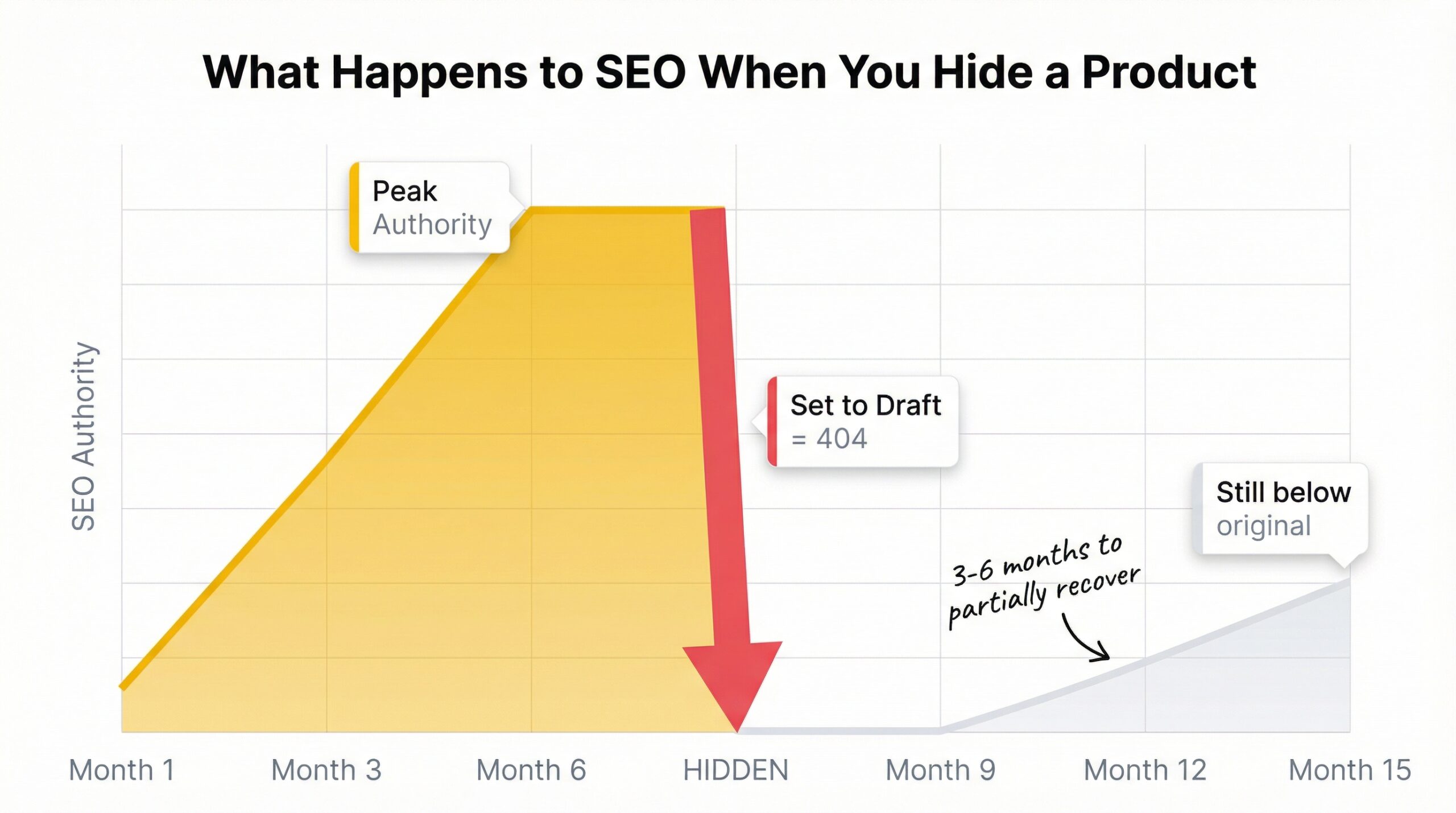
When you hide out of stock products, the URL returns a 404. Google deindexes the page, typically within two to four weeks. Every backlink pointing to that page now leads nowhere. According to SEO experts at Yoast, 301 redirects preserve approximately 90-99% of link equity, but a 404 error preserves zero.
If you restock the product later and set it back to Active, you’re starting from scratch. Google treats it as a new page. The rankings you spent months building? Gone. And since 73% of consumers say product availability influences store loyalty (NRF, 2024), the customers who bounced off your 404 page may not be searching for your brand again.
You lose the ability to capture demand
A hidden product page captures nothing. No emails, no signups, no data on how many people wanted that product.
An active out-of-stock page with a “Notify Me” button does the opposite. It turns every disappointed visitor into a potential future customer. 91% of shoppers switch to a competitor when a product is out of stock (Amra & Elma, 2025). But a customer who signs up for a restock alert is far more likely to come back than one who bounced off a 404 page.
Restock alert emails average 30-35% click-through rates, which makes them one of the highest-converting email types in e-commerce. You can’t capture that demand if the page doesn’t exist. For a deeper look at how notification systems actually recover revenue, the math is clear: visible pages with restock alerts outperform hidden pages every time.
You signal low inventory health to search engines
When Google repeatedly crawls your site and finds pages switching between active and 404, it creates a pattern of instability. Search engines prefer sites with consistent, reliable page structures. Frequent hiding and unhiding products teaches Google that your content is unreliable.
60% of mid-sized retailers experience weekly stockouts (Opensend, 2025). If you’re hiding products every time they sell out, you could be cycling dozens of URLs in and out of Google’s index every month. That’s a recipe for crawl budget waste and ranking instability.
What happens to your SEO when you hide out of stock products?
Here’s the specific chain of events when you hide out of stock products by setting them to Draft on Shopify:
Week 1-2: Google’s crawler visits the URL and receives a 404 error. It marks the page for removal from the index. Any Google Shopping listings for that product stop appearing.
Week 2-4: Google deindexes the page. The URL no longer appears in search results. Any search queries that were driving traffic to that page now show your competitors instead.
Month 1-3: Backlinks pointing to the hidden product page are effectively dead. The link equity those backlinks provided to your domain starts to decay. Your domain authority can take a small but measurable hit if multiple product pages are hidden simultaneously.
If you republish later: Google treats the URL as a new page. It needs to be recrawled, reindexed, and reevaluated. Rebuilding the ranking position typically takes three to six months, and you may never fully recover the position you had.
The SEO impact scales with how many products you hide. Choosing to hide out of stock products on one or two low-traffic pages? Minimal damage. Twenty or thirty products with established rankings? Significant ranking loss across your entire site.
| Action | SEO Impact | Recovery Time | Best For |
|---|---|---|---|
| Hide (Draft) | Page deindexed, backlinks wasted | 3-6 months to rebuild | Permanently discontinued |
| Keep active with OOS markup | No ranking loss, proper signals | N/A | Temporarily out of stock |
| 301 redirect | 90-99% equity preserved | Immediate transfer | Replaced by similar product |
| Push to bottom of collection | No page-level impact | N/A | Active but temporarily unavailable |
The bottom line: the average ecommerce out-of-stock rate is about 8% (Opensend, 2025). For a store with 200 products, that’s 16 pages at risk. Hiding all of them means 16 pages cycling through Google’s index unpredictably.
What should you do instead of hiding out of stock products on Shopify?
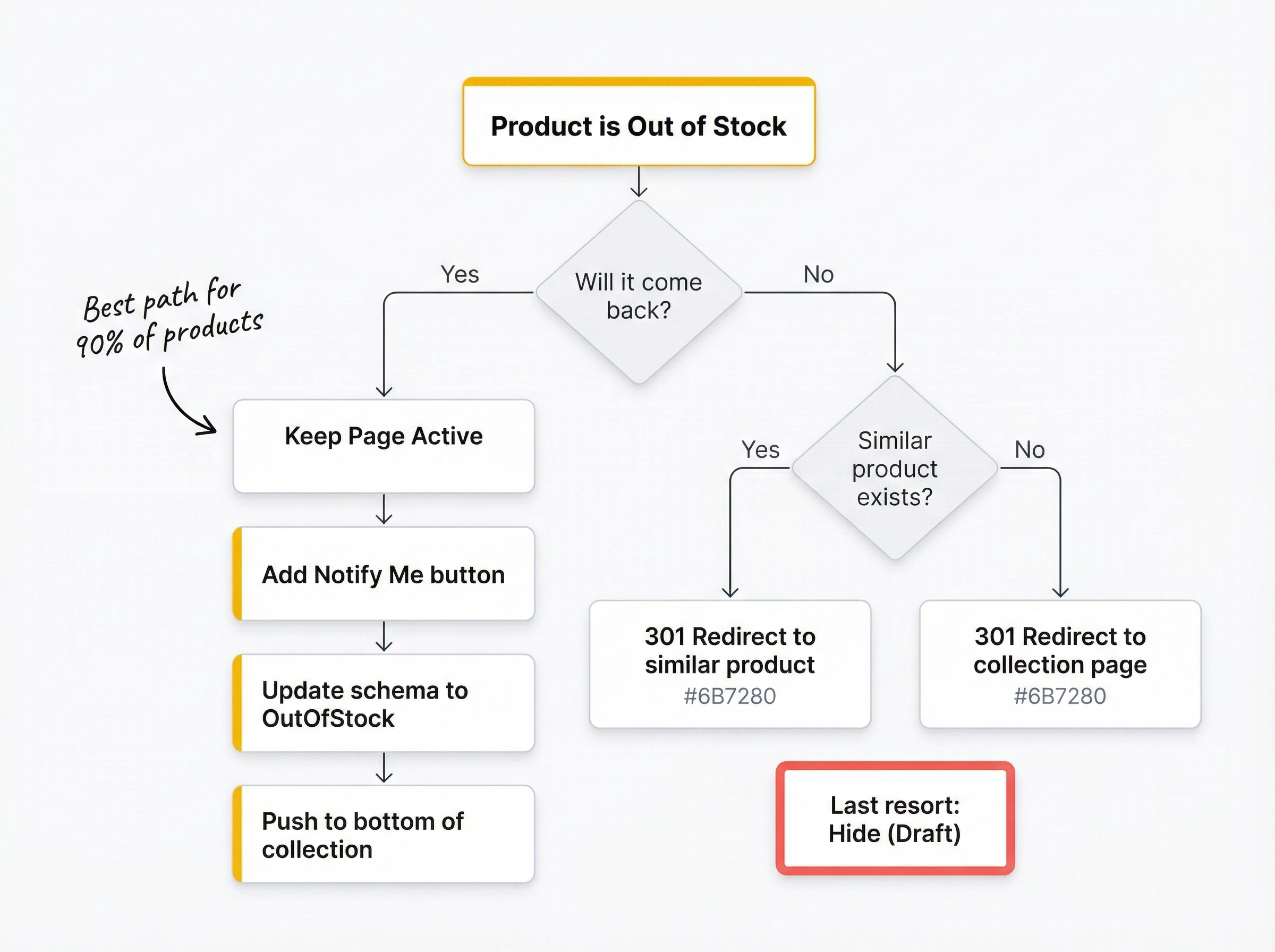
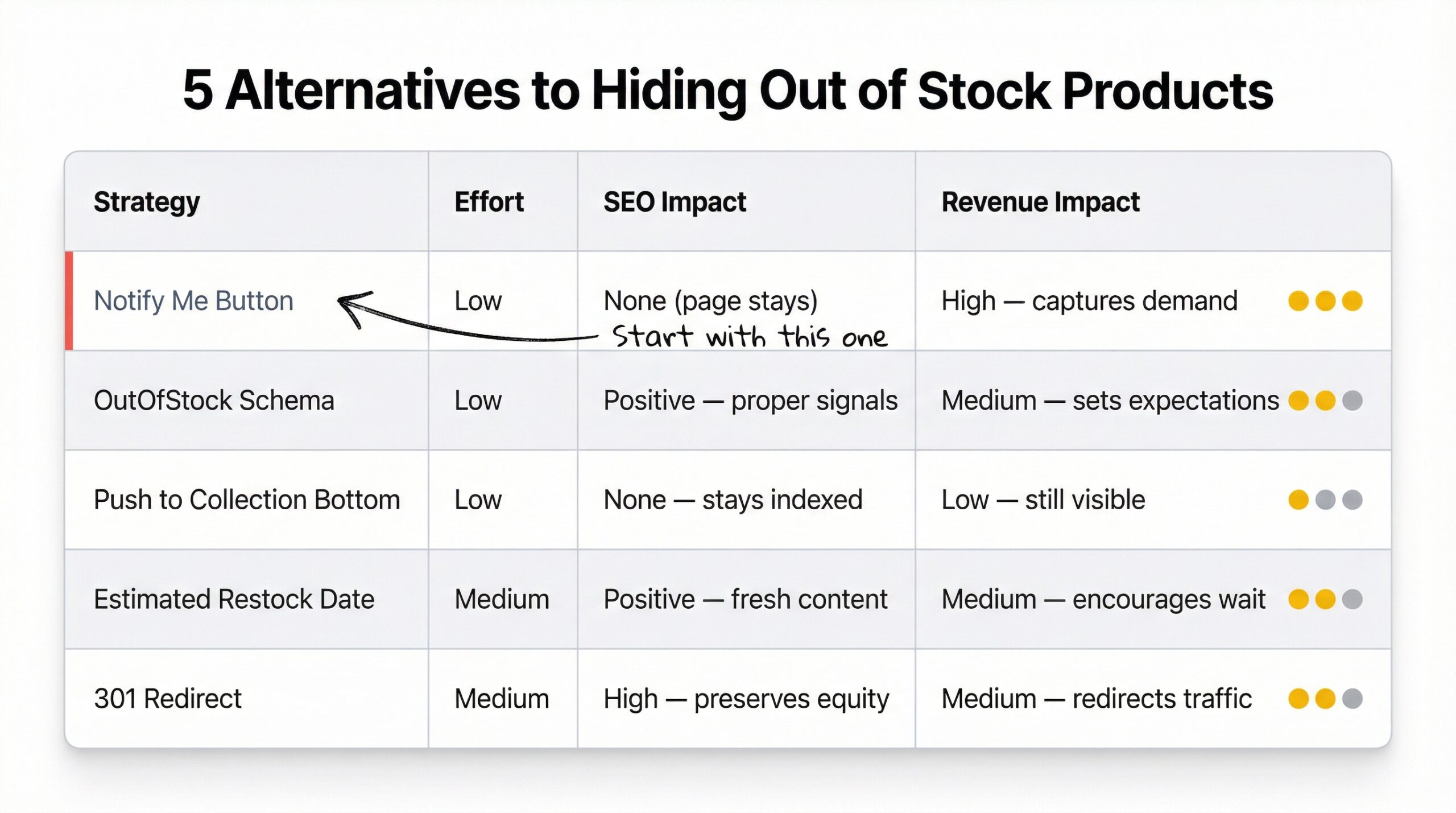
Rather than hide out of stock products, there are several approaches that protect both your SEO and your revenue. Here’s what to do, ranked by impact.
1. Keep the page live with a Notify Me button
This is the single best move for any product you plan to restock. The page stays indexed, backlinks keep working, and you capture demand from every visitor.
When a customer clicks “Notify Me” and enters their email, they get an automatic alert when you restock. This converts a lost sale today into a recovered sale tomorrow. Tools like StoreBeep make this automatic: the button appears on out-of-stock pages, collects emails, and sends restock alerts without any manual work.
The revenue math favors this approach heavily. If your out-of-stock product page gets 50 visitors per week and 15% sign up for restock alerts, that’s 7-8 potential future sales per week that you’d lose entirely with a hidden page.
2. Add schema.org OutOfStock markup
Schema.org product availability markup tells search engines your product exists but is temporarily unavailable. Instead of Google treating your page like a broken listing, it understands the context and keeps the page indexed properly.
Shopify SEO specialist Ilana Davis explains that accurate availability schema reduces bounce rates by setting correct expectations in search results. Google can display “Out of Stock” directly in search listings, so customers know before they click.
Most Shopify themes include basic schema markup for product availability, but you may need to customize the availability value to dynamically switch between InStock and OutOfStock based on inventory levels.
3. Push sold-out products to bottom of collections
Instead of hiding products from collections entirely, push them to the bottom. Customers browsing your collection pages see in-stock products first, but the sold-out items remain visible (and indexable) at the bottom.
Several Shopify apps automate this by sorting collection pages based on inventory status. The sold-out products don’t clutter the top of your collections, but they stay accessible to search engines and to customers who specifically search for them.
4. Set estimated restock dates when possible
If you know when a product is coming back, say so on the page. “Expected back in stock: March 2026” sets customer expectations and gives them a reason to sign up for restock alerts rather than buying from a competitor.
This also provides fresh content signals for Google. A page with a recent update date and specific restock information is more valuable than a stale “Sold Out” page with no context.
5. Use 301 redirects for permanently discontinued products
When a product is truly gone and will never come back, don’t leave the page returning a 404. Set up a 301 redirect to the most similar active product or to the parent collection page.
A 301 redirect tells Google the page has permanently moved. It transfers 90-99% of the original page’s link equity to the new destination. This is far better than losing that authority entirely, which is what happens when you hide or delete the page.
When hiding actually makes sense (the exceptions)
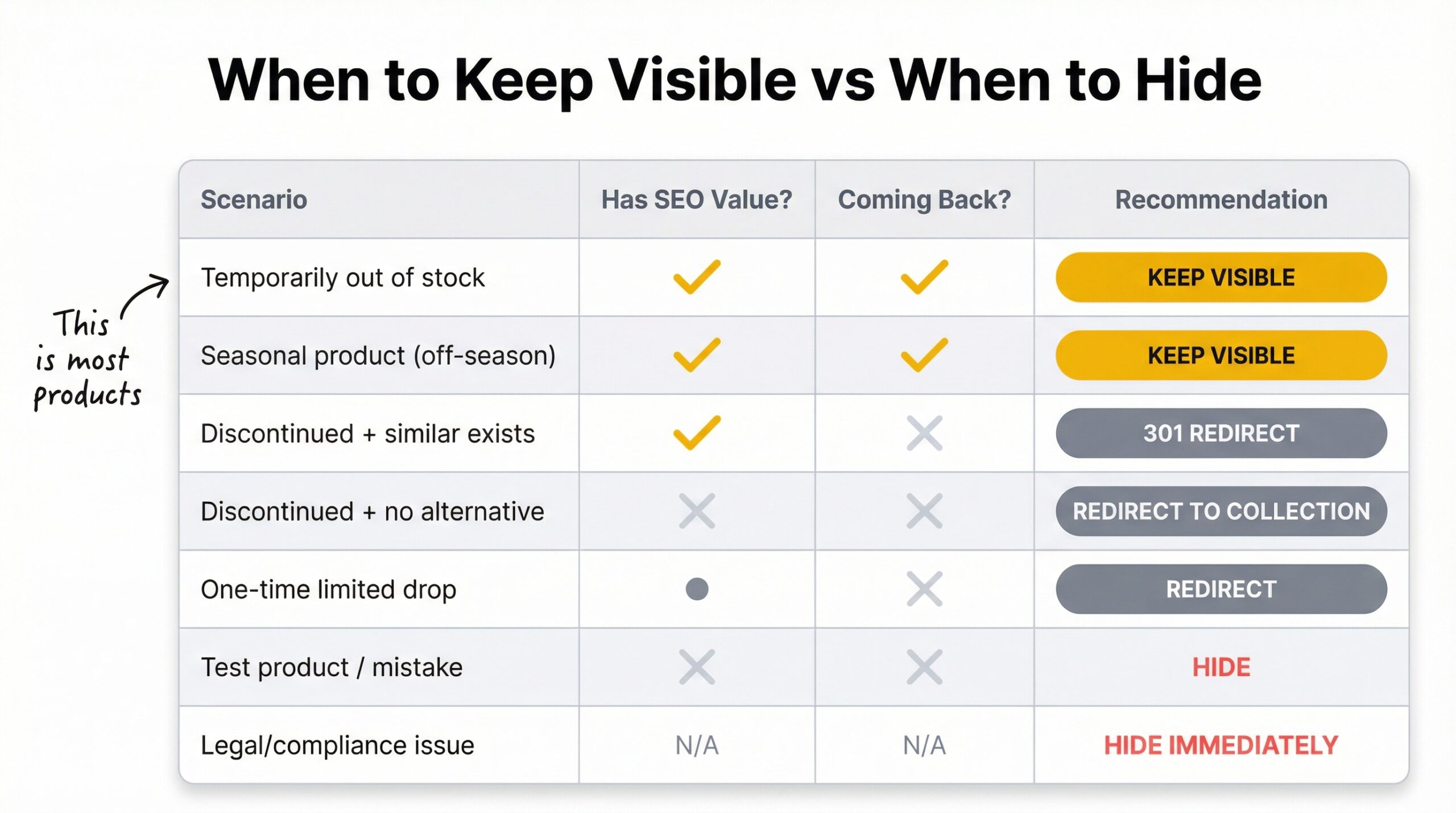
While the general advice is to never hide out of stock products, there are specific situations where hiding is the right call. These are the exceptions, not the rule.
| Scenario | Why Hiding Works | Better Alternative |
|---|---|---|
| Permanently discontinued, no similar product | No reason to keep page | 301 redirect to collection |
| Seasonal products (Halloween, Christmas only) | Confusing to show year-round | Keep live with “Back in [Season]” note |
| One-time limited drops | Product will never return | 301 redirect to new drop |
| Legal or compliance issues | Must remove immediately | Hide immediately, redirect later |
| Test products published accidentally | Shouldn’t be visible | Hide or delete |
For seasonal products, the decision depends on the SEO value of the page. If a seasonal product page ranks well for a competitive keyword, keeping it active year-round with a note like “This product returns every October” preserves your ranking and lets you capture early demand.
32% of customers switch brands permanently after a single stockout experience (Barilliance, 2024). For seasonal products, losing those customers during the off-season means they may not come back when the season returns, especially if a competitor captured their attention during the gap.
How to handle out of stock products on Shopify (step by step)
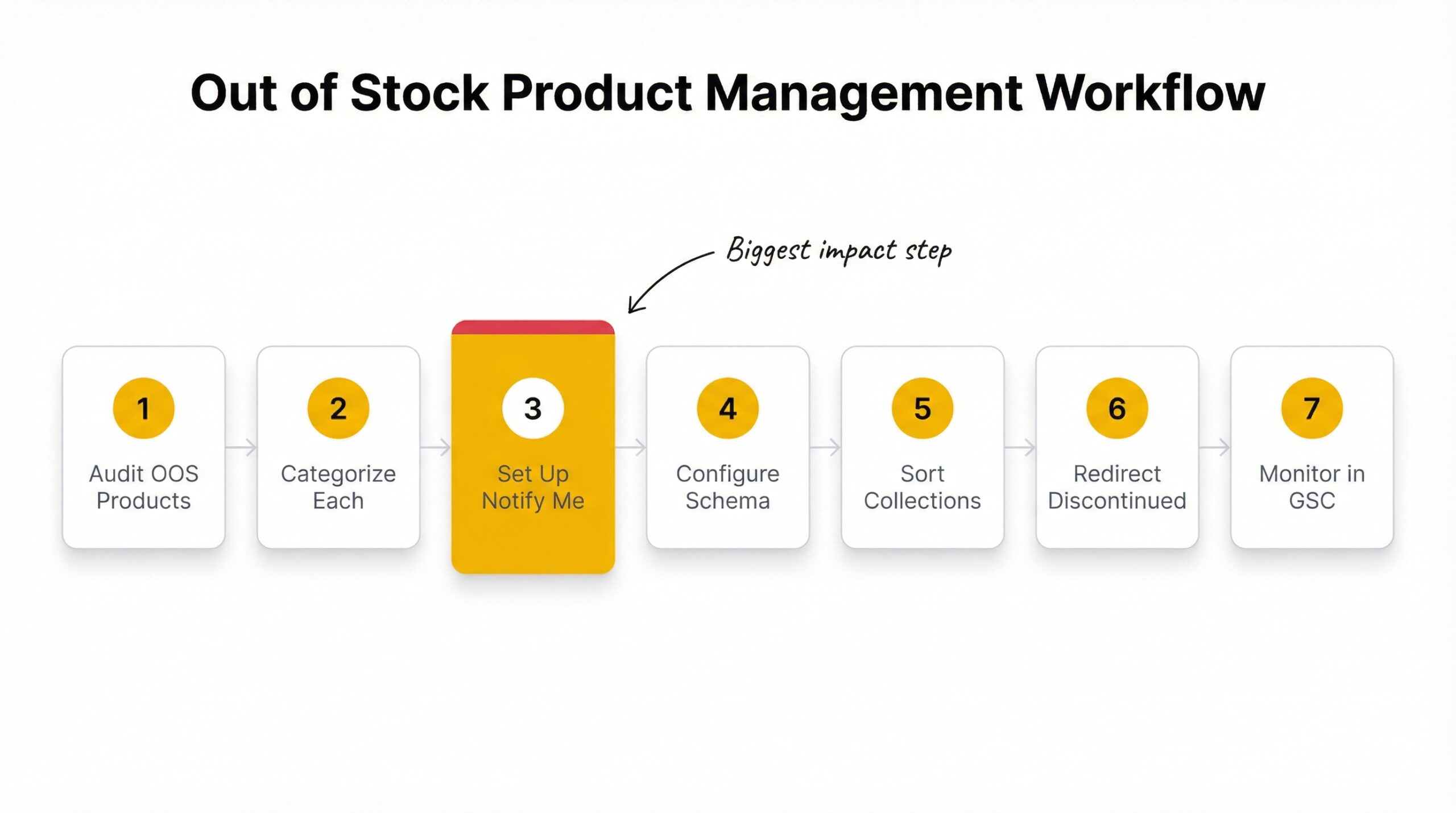
Here’s a practical workflow for managing out-of-stock products without hurting your SEO or losing revenue.
Step 1: Audit your current out of stock products. Go to Products in your Shopify admin and filter by “out of stock.” Count how many products are currently unavailable and check their status (Active, Draft, or Archived).
Step 2: Categorize each product. Sort your out-of-stock items into two groups: “coming back” (temporarily unavailable) and “permanently gone” (discontinued). This determines your strategy for each.
Step 3: Set up Notify Me buttons for returning products. Install a back-in-stock alert app and make sure the “Notify Me” button appears automatically on every out-of-stock product. The actual cost of each stockout extends well beyond the lost sale itself, and capturing demand is the fastest way to recover.
Step 4: Configure schema markup. Verify that your theme’s product schema dynamically changes the availability value based on inventory. Use Google’s Rich Results Test to confirm your markup is working.
Step 5: Push sold-out items to collection bottoms. Use your theme’s sort settings or an app to automatically push out-of-stock products below in-stock inventory in collection pages.
Step 6: Redirect discontinued products. For products that are permanently gone, set up 301 redirects in Shopify’s URL Redirects (Settings > Navigation > URL Redirects). Point each discontinued product URL to the closest active alternative.
Step 7: Monitor Google Search Console. Check the Coverage report monthly for any new 404 errors from product pages. Fix them before they impact your rankings.
Shopify Flow automation for out of stock product visibility
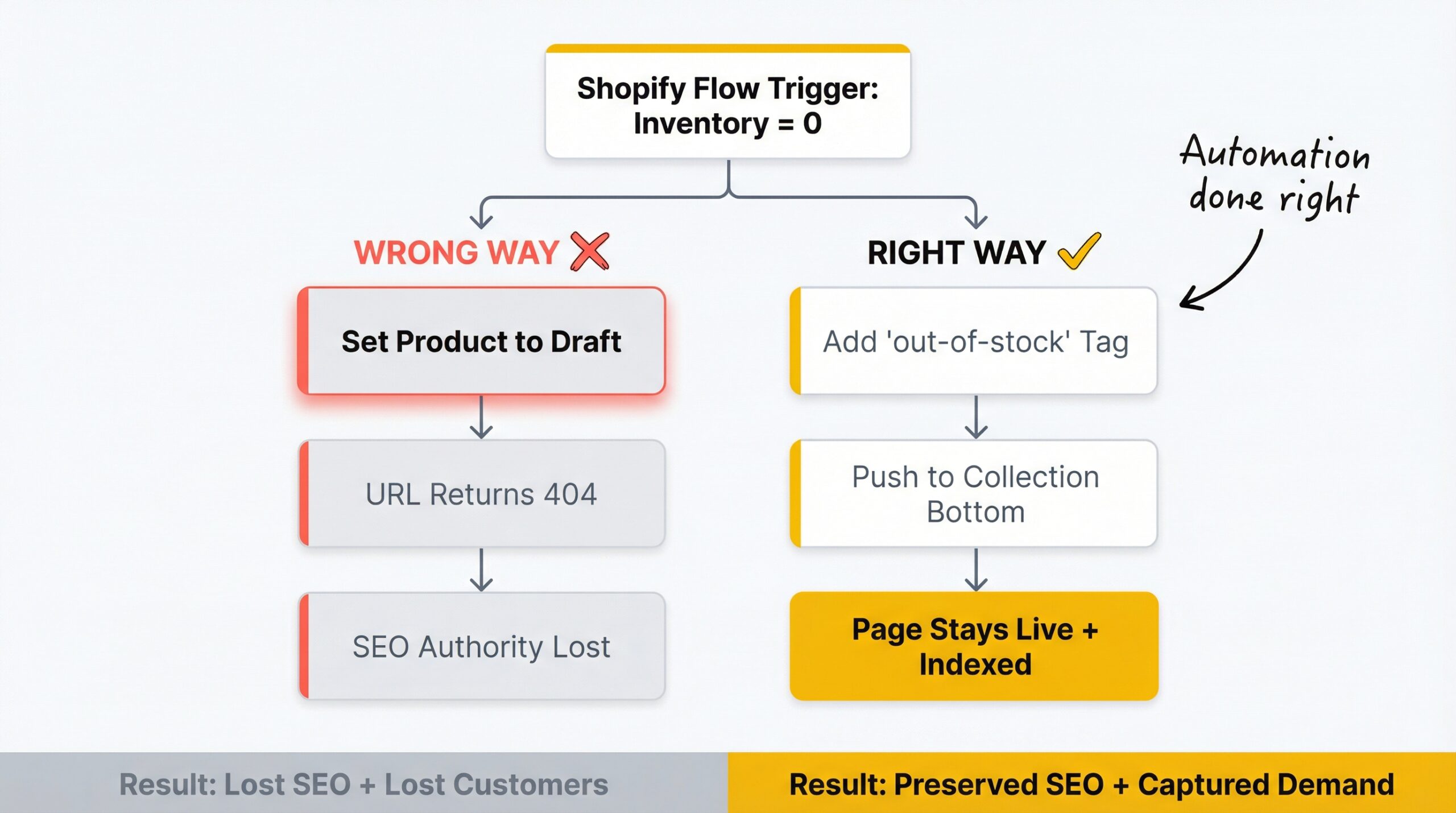
Instead of using Shopify Flow to hide out of stock products, use it to manage out of stock visibility more intelligently. Shopify Flow lets you build automated workflows triggered by inventory changes. You can set up a flow that fires when inventory hits zero and takes specific actions.
What Shopify Flow can automate:
- Remove products from specific sales channels when inventory reaches zero
- Add a tag to out-of-stock products for custom collection sorting
- Send internal notifications when products need restocking
- Auto-publish products when inventory is added back
What you should avoid automating:
- Hiding products (Draft status) on every stockout. This creates the SEO yo-yo problem described earlier.
- Deleting products automatically. This is irreversible and destroys all associated data.
- Removing products from your Online Store channel. This is functionally identical to hiding.
The smarter automation approach for Shopify out of stock visibility: use Shopify Flow to tag products as “out-of-stock” and configure your collection sort order to push tagged products to the bottom. The pages stay active, indexed, and able to capture demand. When inventory returns, the tag is removed and products float back to their normal position.
69% of shoppers leave for a competitor on a stockout (Opensend, 2025). Automation should work to capture those shoppers, not to make your products invisible to them. For more strategies on turning stockouts into opportunities, explore the StoreBeep blog for actionable guides.
The bottom line: should you hide out of stock products?
40% of all lost retail sales are attributed directly to stockouts (Datawiz, 2025). When you hide out of stock products on Shopify, you make that number worse, not better.
For the vast majority of Shopify merchants, the right approach is to keep out-of-stock product pages visible, add “Notify Me” functionality, implement proper schema markup, and push sold-out items to the bottom of collections. You protect your SEO, capture demand, and recover revenue when you restock.
Here’s a quick summary of what to do:
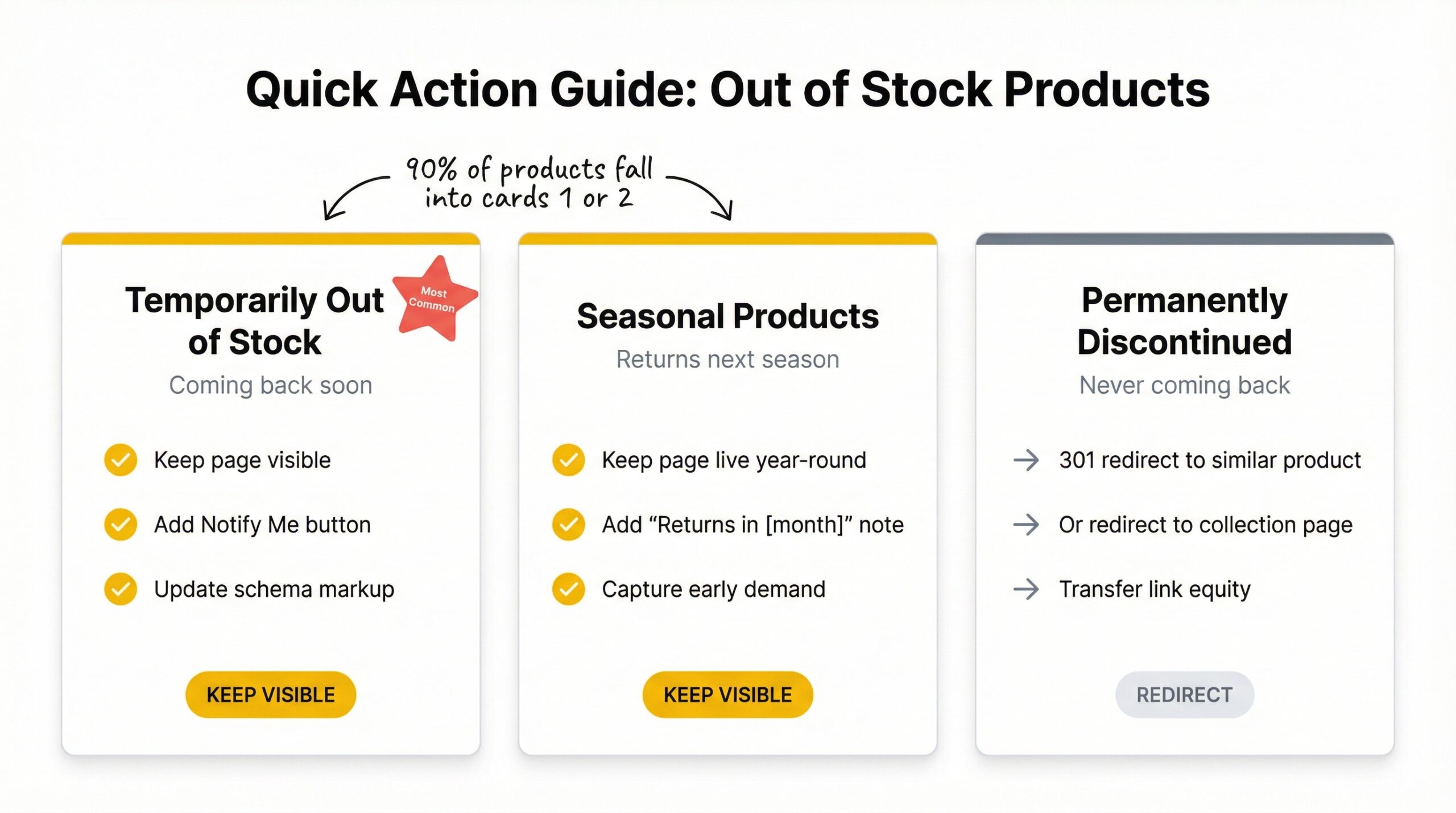
- Temporarily out of stock? Keep visible. Add “Notify Me.” Update schema markup.
- Coming back next season? Keep visible. Add “returns in [month]” note.
- Permanently discontinued? 301 redirect to similar product or collection.
- Never should have been public? Hide or delete.
The average ecommerce out-of-stock rate is 8% (Opensend, 2025). That means roughly 1 in 12 products in your catalog is unavailable right now. Managing those products well, instead of hiding them, is one of the easiest ways to protect your rankings and your revenue.
If you’re looking for the simplest way to start capturing demand on out-of-stock pages, StoreBeep back in stock alerts get a “Notify Me” button on your sold-out products in under five minutes. No code, no complex setup, and automatic emails when you restock.
Frequently asked questions
Should I hide out of stock products on Shopify?
No. If you’re asking should I hide out of stock products, the answer for most Shopify merchants is to keep those product pages visible. Hiding removes indexed pages from Google, wastes accumulated SEO authority, and prevents you from capturing demand through “Notify Me” signups.
What happens when you hide a product on Shopify?
Hiding sets the product to Draft status, removing it from your storefront and online sales channels. The URL returns a 404 error, Google deindexes the page within weeks, and any backlinks lose their SEO value.
Does hiding out of stock products hurt SEO?
Yes. Hidden products return 404 errors, which causes Google to deindex them. Backlinks pointing to those pages lose their link equity, and your site loses the topical authority those pages contributed.
How do I keep out of stock products visible without confusing customers?
Add a “Notify Me” button to collect restock signups, use schema.org/OutOfStock markup so Google understands availability, and push sold-out products to the bottom of your collection pages.
What is schema.org OutOfStock markup?
It’s structured data added to product pages telling search engines the product exists but is temporarily unavailable. This prevents Google from treating the page as broken while keeping it indexed for future searches.
When should I actually hide an out of stock product?
Hide products only when they are permanently discontinued with no similar alternative to redirect to, when they have legal or compliance issues, or when they were test products never meant for public visibility.
Should I delete or hide out of stock products?
Neither, for products that will return. Keep the page live with a “Notify Me” button. For permanently discontinued products, use a 301 redirect to a similar active product rather than deleting or hiding.
Can Shopify Flow automatically hide out of stock products?
Yes, Shopify Flow can change product status based on inventory levels. However, automating frequent hiding and unhiding creates an SEO yo-yo effect. A better Flow automation tags products and pushes them to collection bottoms instead.
How long does it take Google to deindex a hidden product?
Google typically detects the 404 error within one to two weeks and deindexes the URL within two to four weeks. Recovering that ranking position after republishing often takes three to six months.
How do back in stock alerts help with out of stock pages?
Back in stock alerts let customers sign up for email notifications when you restock. This captures demand you’d otherwise lose, and restock alert emails average 30-35% click-through rates, converting interested shoppers into actual buyers.
What’s the difference between hiding and archiving a product on Shopify?
Both hiding (Draft) and archiving remove the product from your storefront and return a 404 error. The difference is organizational: Draft products appear in your Products list by default, while Archived products are filed separately in your admin.